User management
Overview of User Management
This is a list of users in the entire system. The system administrator will grant accounts to testers through this feature.
This section will guide users on how to manage users on the LLQ QA Platform:
- Create New User
- View and Edit User Information
- Change User Password
- Delete User
- Export & Import User List
Create New User
To create a new user in the LLQ QA Platform, follow these steps:
Step 1: On the tool list interface, click Settings or the Apps > Settings button located on the header.
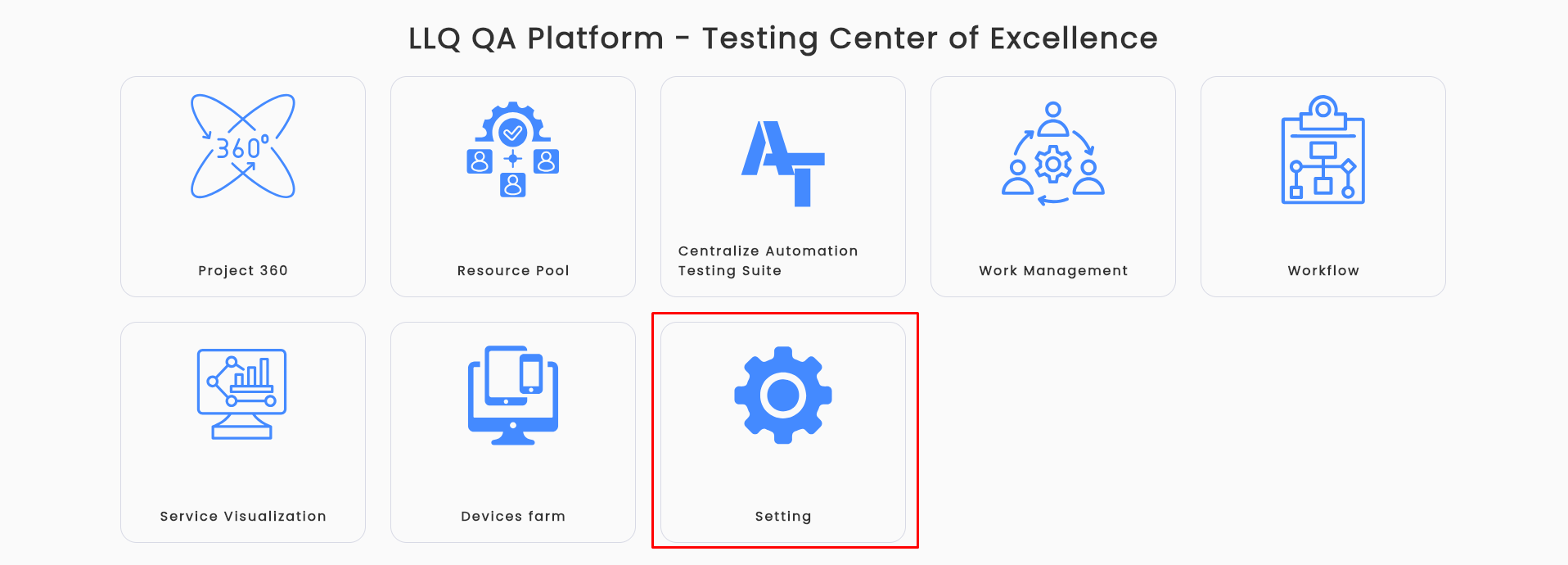
Or
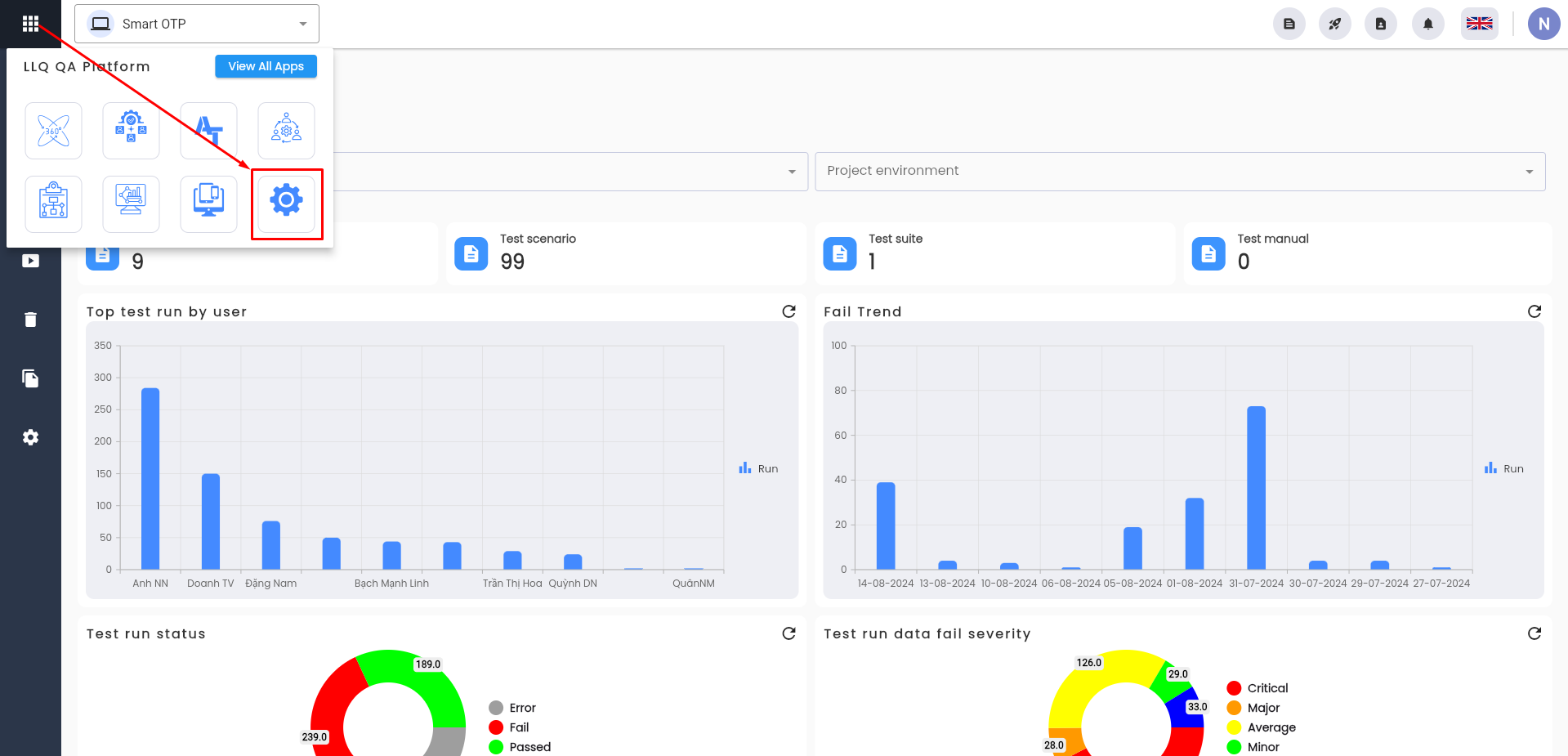
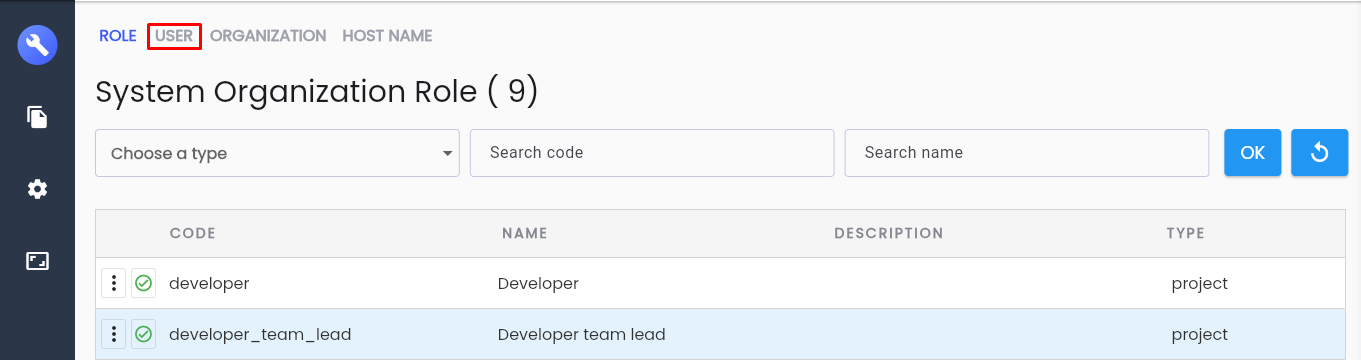
Step 2: Click the USER tab.
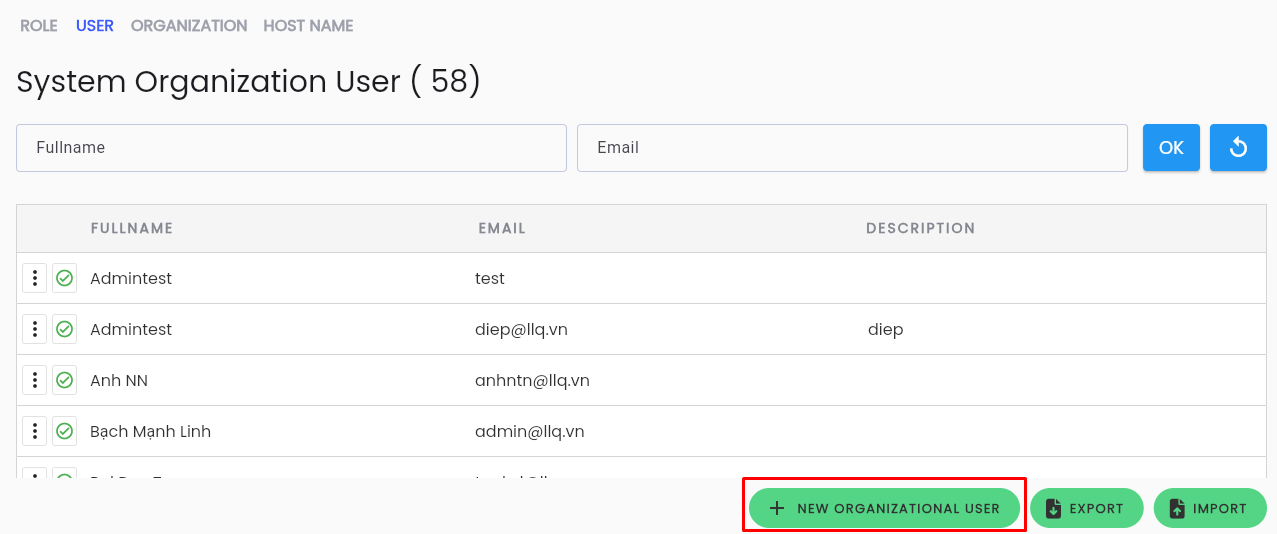
Step 3: Click the NEW ORGANIZATION USER button.
Step 4: Fill in all the information in the CREATE USER form.
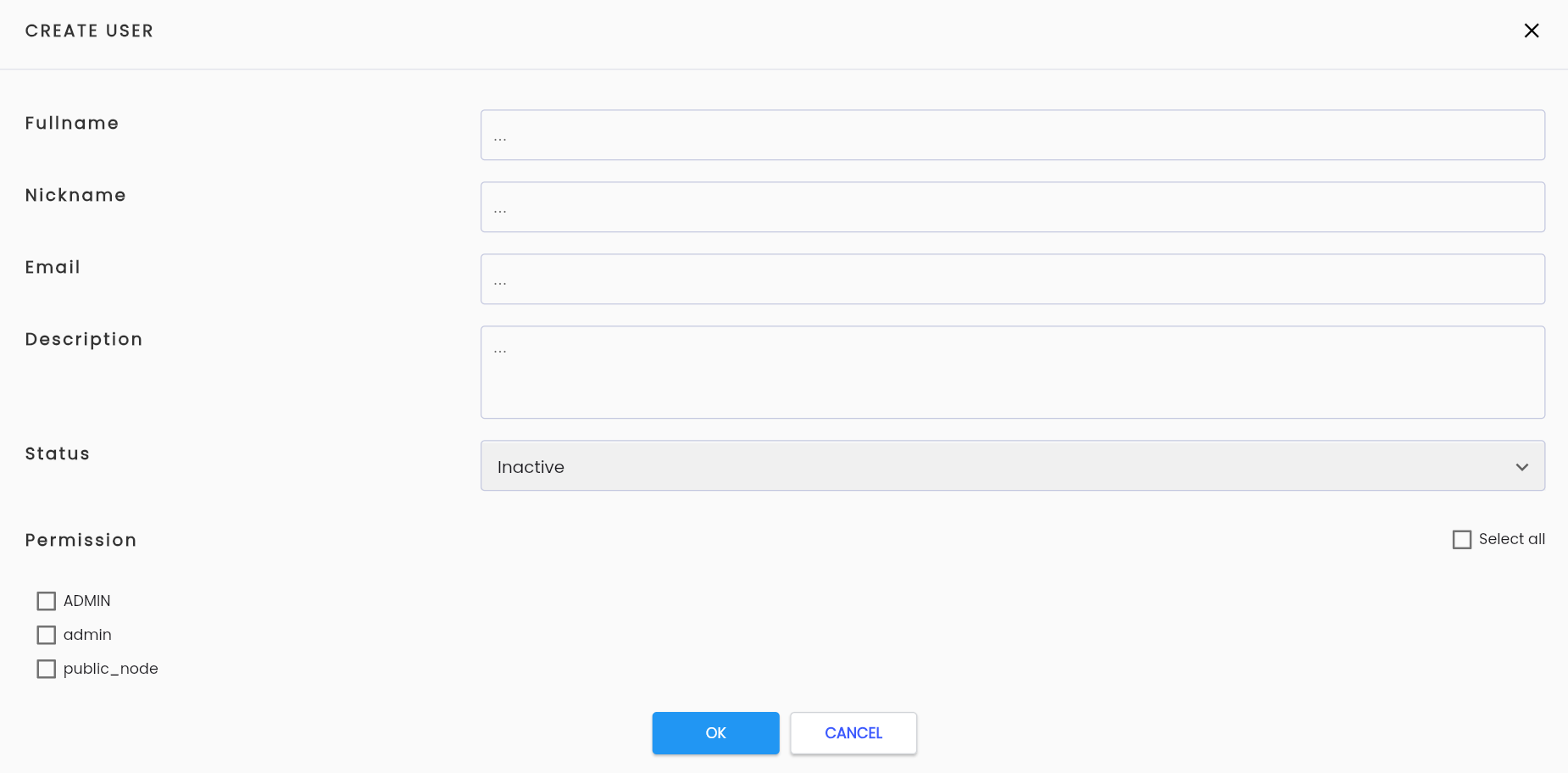
Description of the fields:
| Field Name | Mandatory | Format | Constraints | Description |
|---|---|---|---|---|
| Fullname | Có | Textbox | Enter the full name of the user. | |
| Nickname | Có | Textbox | Must be unique | Enter a nickname for the user. |
| Có | Textbox | Enter the email for the user. | ||
| Description | Không | Textarea | Enter a description for the user. | |
| Status | Có | Combobox | Displays the list of user statuses, the system administrator can select one value: + Active: user is active + Inactive: user is inactive | |
| Permission | Không | Checkbox | Displays the list of permission groups, the system administrator can click to select specific permission groups for the user. Multiple selections are allowed. |
Step 5: Click the OK button to create a new user.
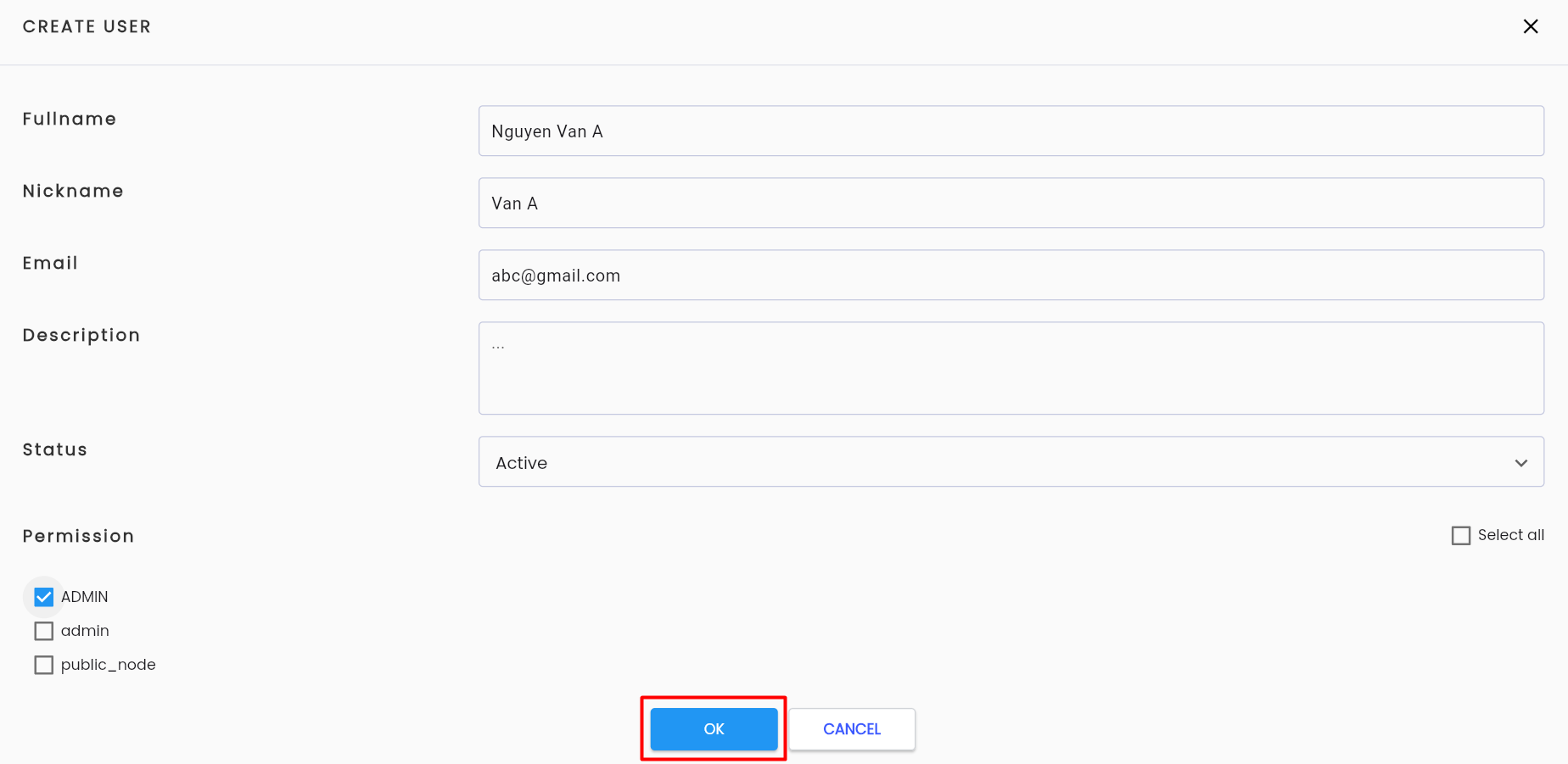
The system will display a Create Successful message and show the newly created user in the data grid.
Note: The user's email will be the username later. After creating a new user, you will perform Change User PassWord
View and Edit User Information
To view and edit user information in the LLQ QA Platform, follow these steps:
Step 1: On the USERtab, select a user you want to edit from the displayed list. Click the ⋮ button on the left of the record and select Edit.
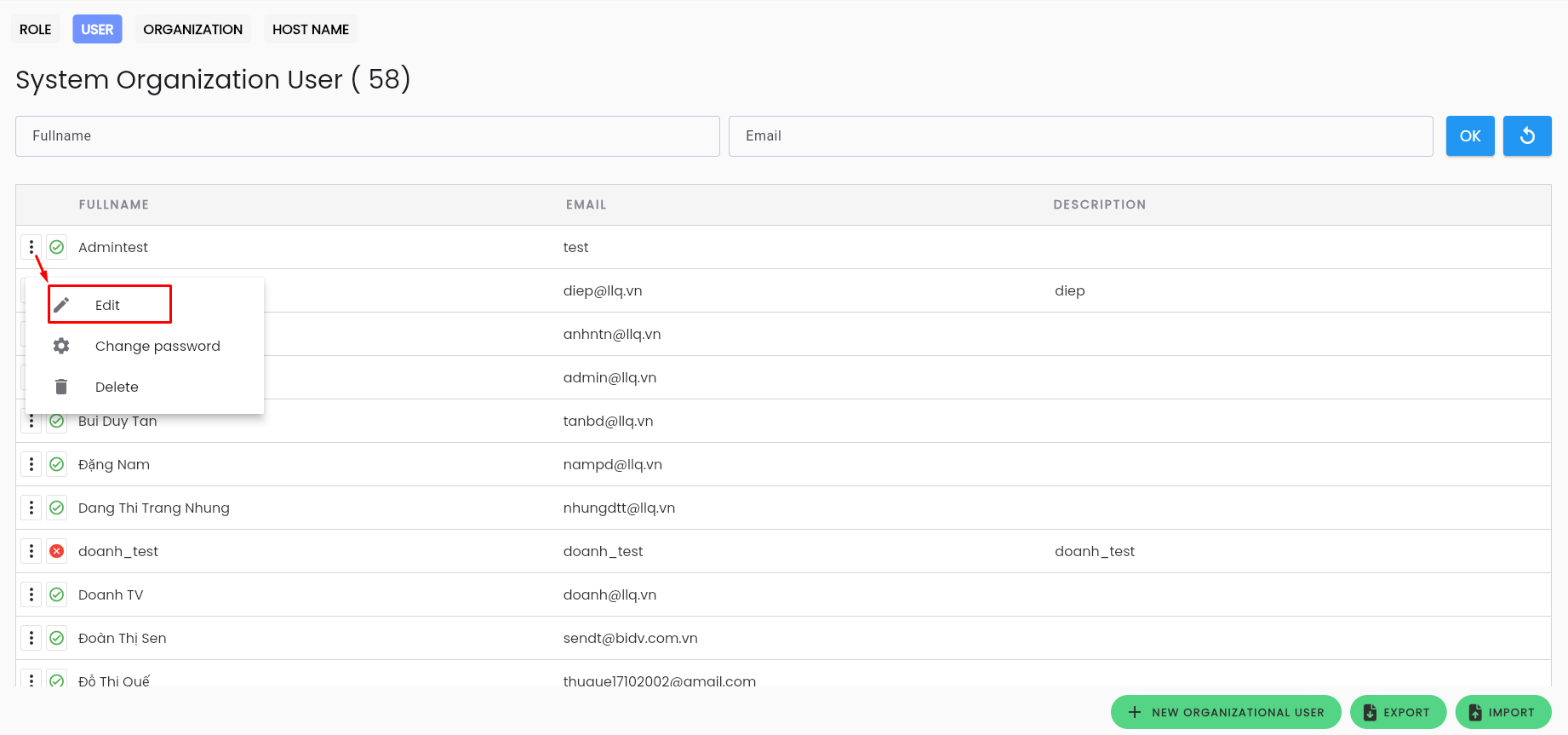
Step 2: View and edit the user's information as required. Information Fields.
Step 3: Click the OK button. The system displays an Update successful message.
Note: The email cannot be edited.
Change User Password
To grant a password for a user's account in the LLQ QA Platform, follow these steps:
Step 1: On the USER tab, select a user to grant an account from the displayed list. Click the ⋮ button on the left of the record and select Change Password.
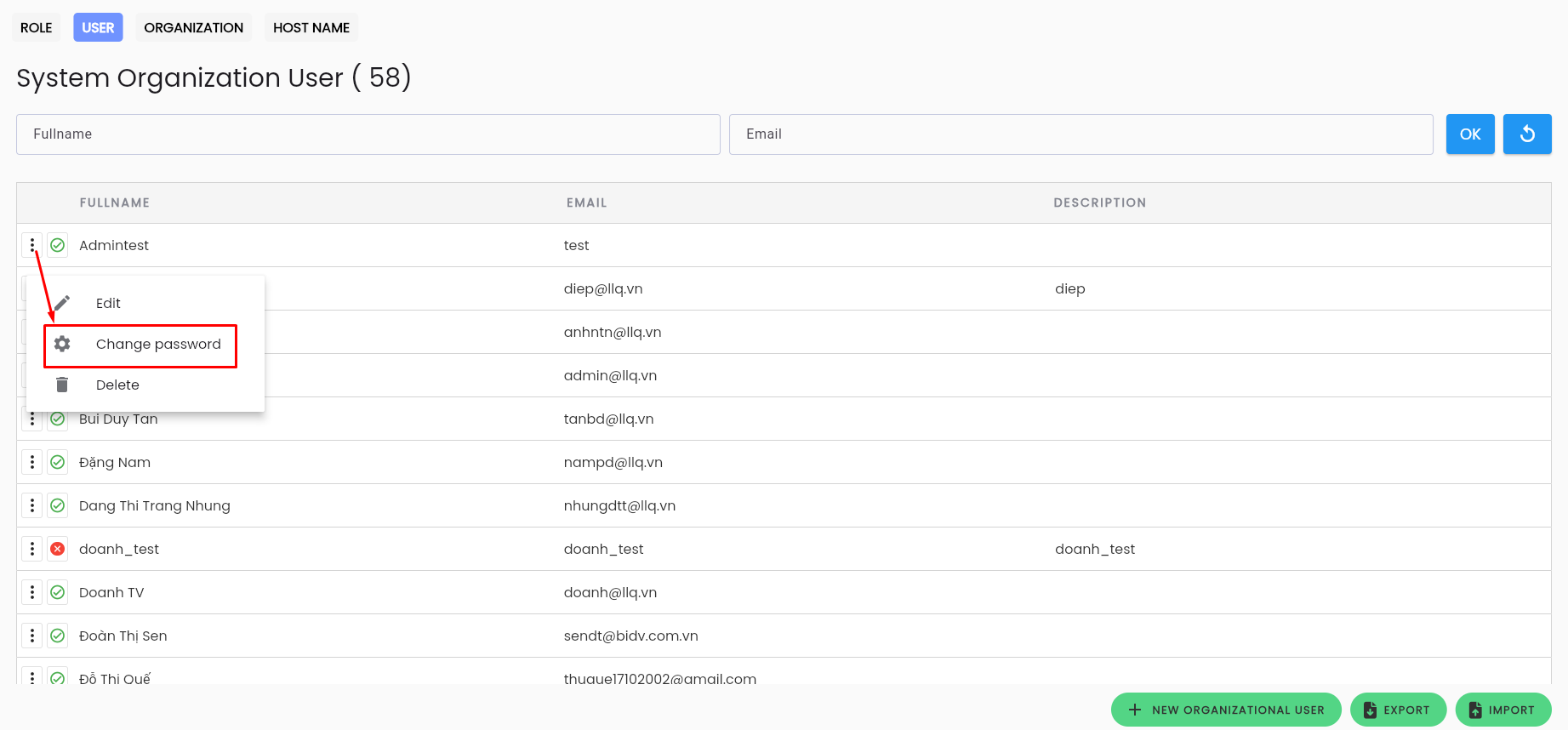
Step 2: Enter the password for the account.
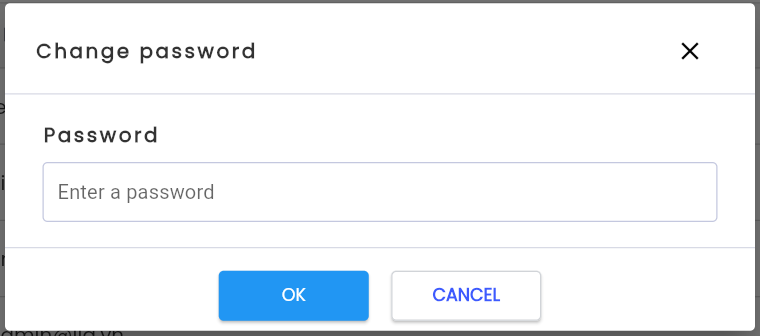
Step 3: Click the OK button. The system displays an Update successful message.
Delete User
Note: The condition to delete a user is that the user must not have any data constraints (has never created or is not part of any projects). If they have left a trace in the system, they cannot be deleted.
To delete a user in the LLQ QA Platform, follow these steps:
Step 1: On the USER tab, select a user you want to delete from the displayed list. Click the ⋮ button on the left of the record and select Delete.
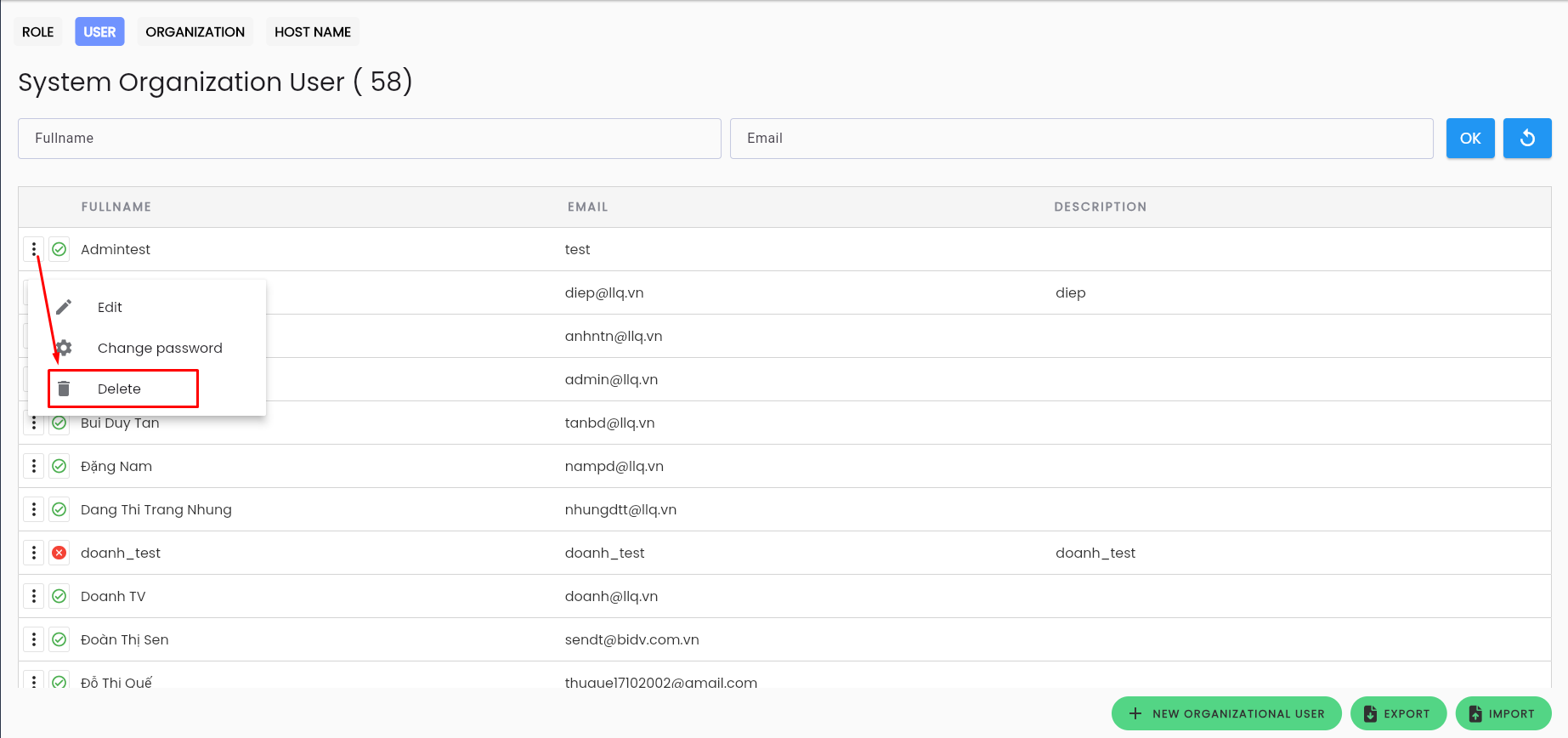
Step 2: The system displays a Xác nhận popup. Click the OK button to delete the user.
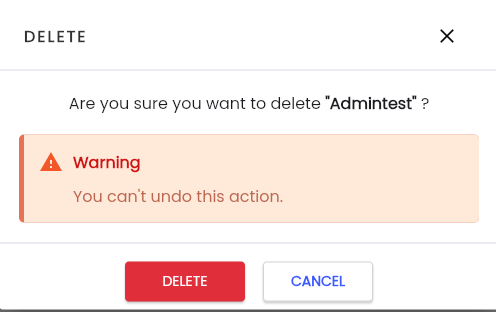
The system displays a Delete successful message.
Export & Import User List
To export & import the user list in the LLQ QA Platform, follow these steps:
Step 1: On the USER tab, click the EXPORT button.
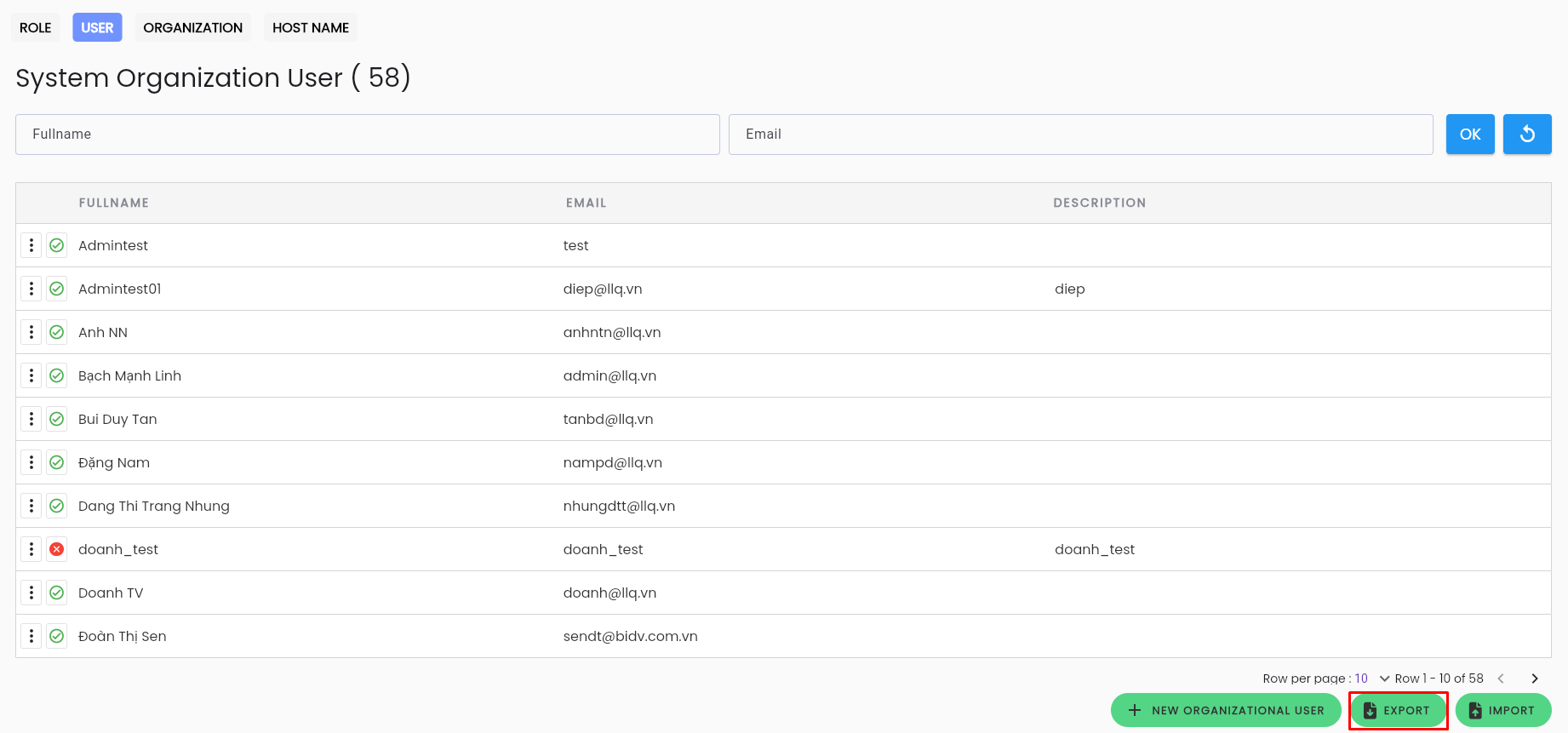
Step 2: Excel template file containing the user list will be downloaded to the Downloads folder on your computer.

Step 3: Users can edit the information of multiple accounts or create additional accounts by adding information to the Excel file. Then, import it back into the system.
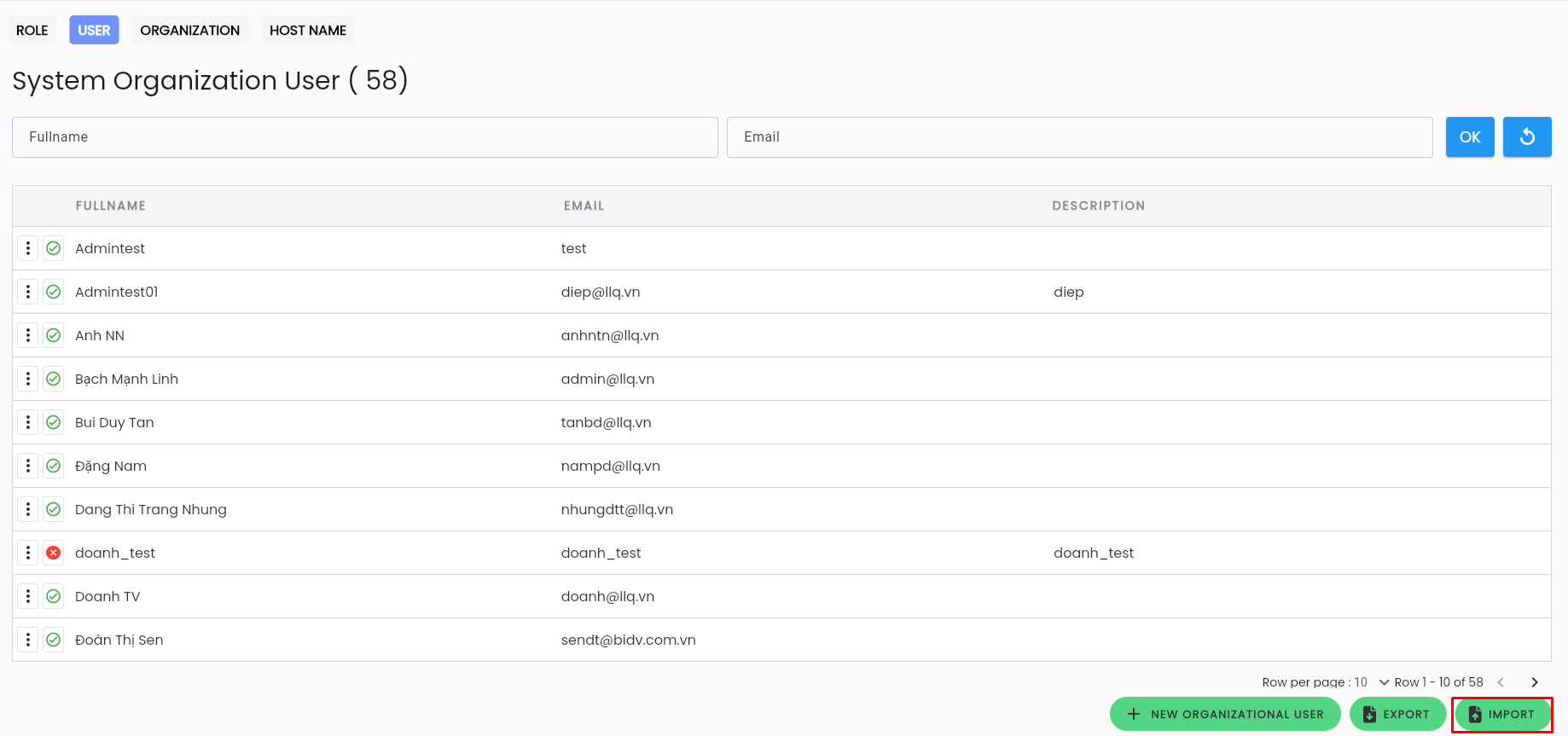
The system displays a Create successfulmessage. At this point, the edited information will be updated, and new user accounts will be created according to the Excel file.