Integration with Jira
To integrate Jira, follow these steps:
Step 1: Navigate to Setting > Project
Step 2: Select Bug tracker type = “Jira”
Step 3: The system will display additional Jira-specific fields. Enter the information correctly and completely.
| Field Name | Mandatory | Format | Constraints | Description |
|---|---|---|---|---|
| Bug tracker account | Yes | Combobox | Select the account for bug reporting. The accounts must be created in the Bug Tracker Account section with Type = “Jira” | |
| Issue create type | Yes | Combobox | Allows selection of one of two values: + AUTO: Automatically report bugs + MANUAL: Manually report bugs | |
| Jira issue type | Yes | Combobox | Displays the list of issue types available in Jira: + Epic + Improvement + Task + Sub-task + New Feature + Bug Users can select one value. |
Step 4: Map the necessary information using the table. The information in the table below is retrieved based on the Jira server configuration.
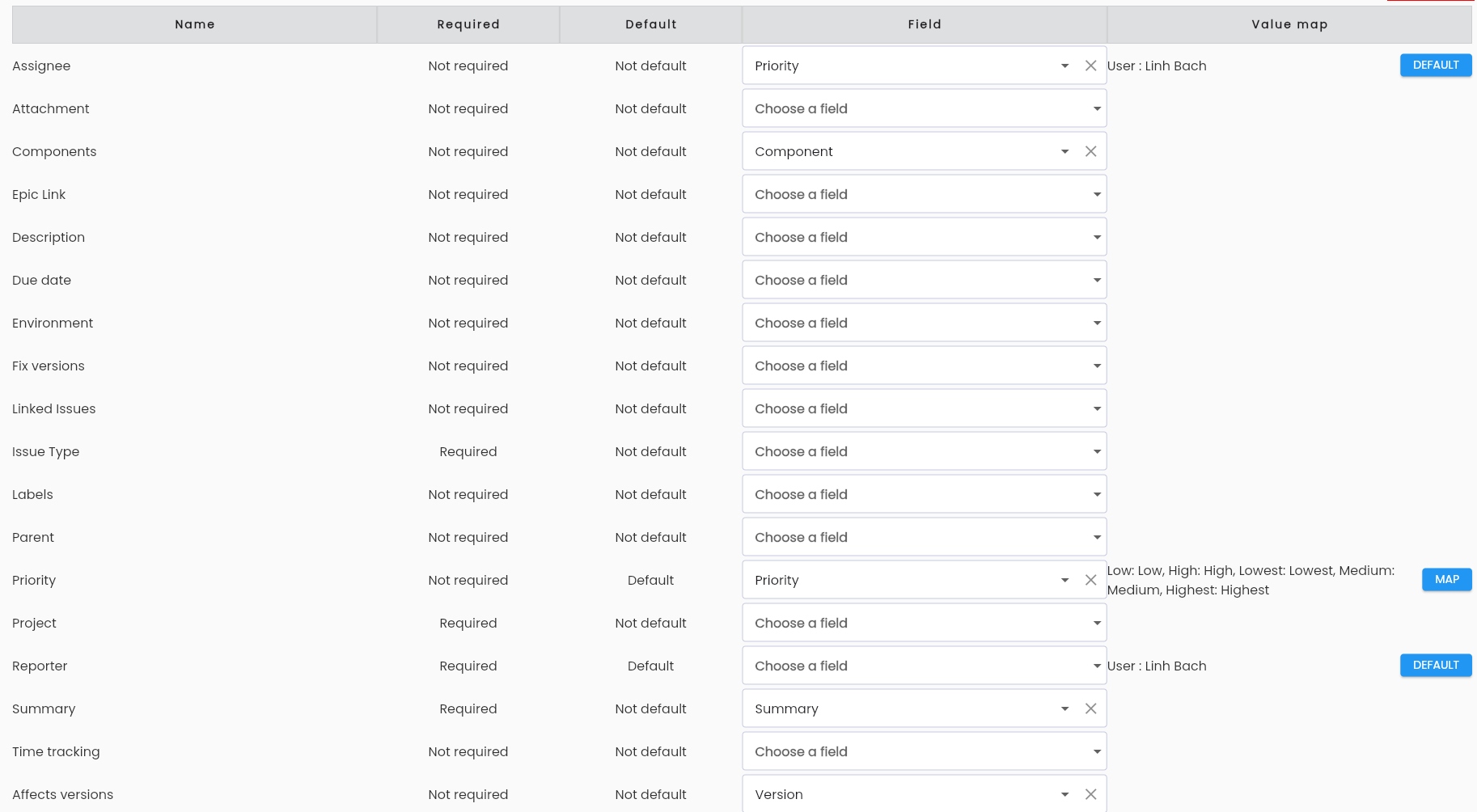
The Name field corresponds to the fields in the Jira system.
Fields in the LLQ QA Platform that can be mapped to the Field column include:
- Summary
- Description
- Version
- Component
- Environment
- Severity
- Priority
- Create User
- Test case
- Test Directory
Step 5: Click the OK button to save the changes.