EndPoints
Create a New Endpoint
Step 1: On the Project screen, click the icon , then select New Endpoint
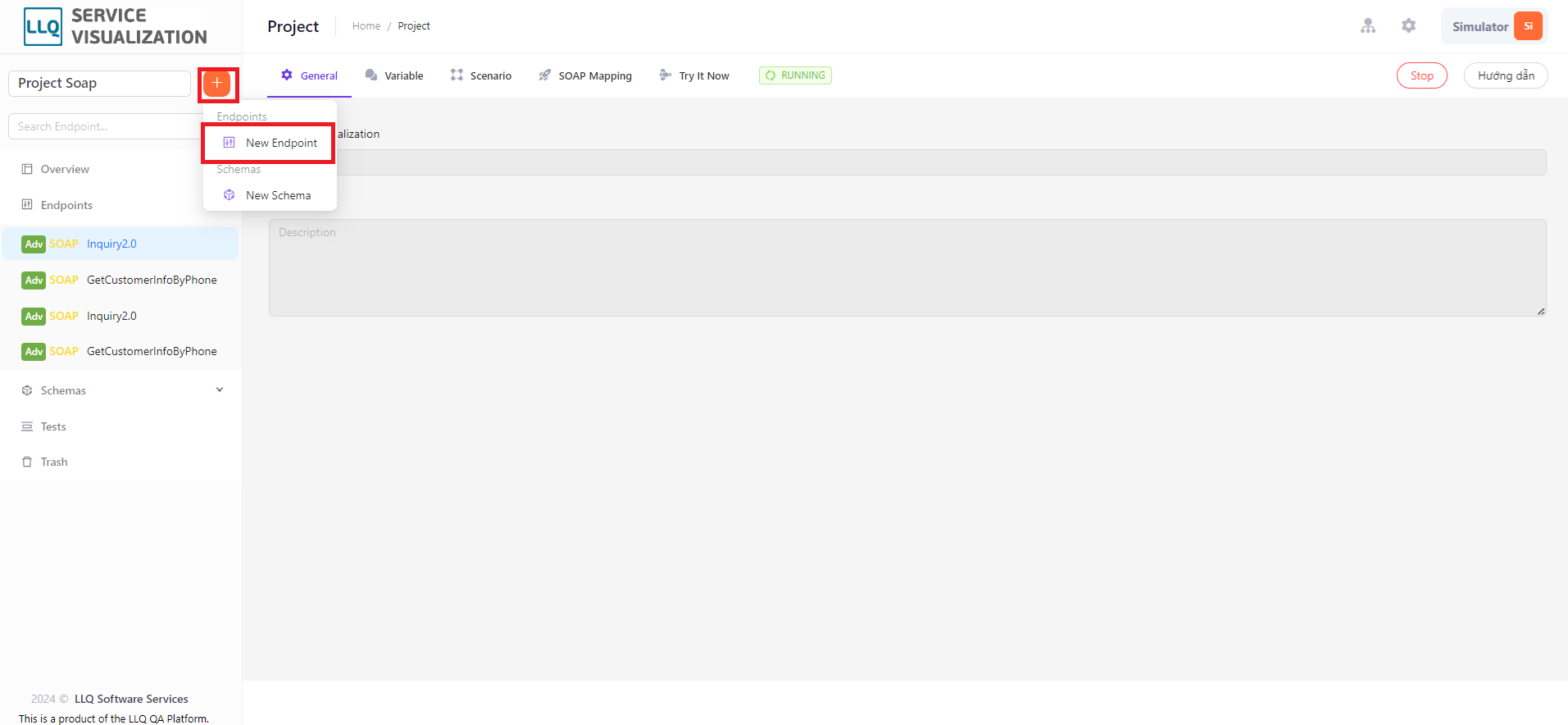 Step 2: The system will display a screen to select the Wsdl file from the user's device.

General
This section displays the information of the Endpoint.
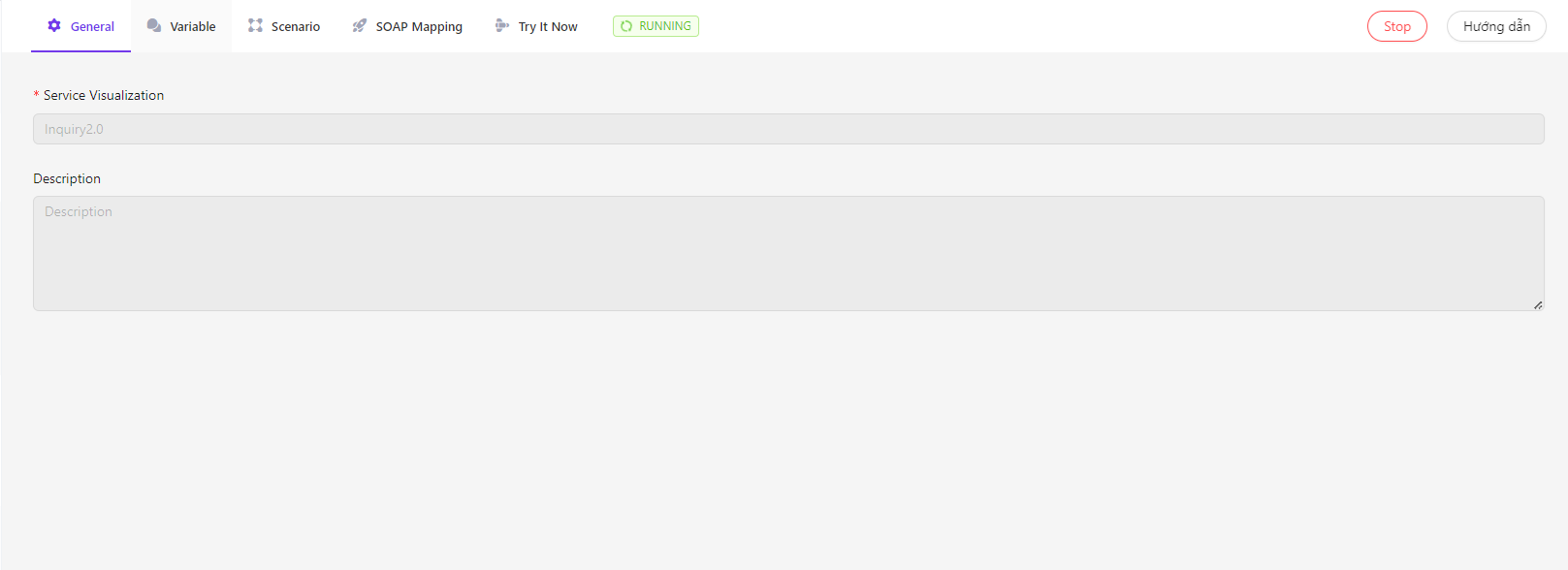 Description of Fields:
| Field Name | Mandatory | Format | Constraints | Description |
|---|---|---|---|---|
| Endpoint name | Yes | Textbox | Endpoint name must be unique | The endpoint name displayed in the list |
| Description | No | Textbox | Detailed description for the Endpoint |
Variable
Variables allow you to configure input (Input) and output (Output) variables quickly.
Input variables: Used for mapping attributes to be sent or in statements.
Output variables: Used to define the response returned from the request.
The variables consist of the following fields:
| Field Name | Mandatory | Format | Constraints | Description |
|---|---|---|---|---|
| Name | Yes | Textbox | Name must not be empty and unique | Variable name when used |
| Type | Yes | Combobox | Schema, String, Number, Object hoặc List | Data type of the variable |
| Description | No | Textbox | Detailed description for the variable |
Quick Guide
Add Variables
Add Input and Output Variables
To add input variables, follow these steps:
Step 1: Open the Variable tab in the advanced request where you want to configure variables.
Step 2: Add variables to Input Variables. There are 2 ways to add variables to Input Variables:
-
Add by clicking the
+icon: Each click adds one variable.
-
Add by generating from a template or package: Select Template or Package from the dropdown list at the top right, then click
Generate. The list of variables generated will correspond to the fields of the selected template or package.
Add Output Variables
Output variables can be added by clicking the + icon in the Output Variablessection. Each click adds one variable.

Using Variables
Input variables will be used to map fields in Request Params, Request Body, and Request Headers:
- In the scenario: You can use variables in statements by adding a $ before the variable name. For example:
select * from message_logs where message = $abc. - In Rest Mapping: You can create the data structure to be sent in the request body by clicking the
Get from input variablebutton.