Random type
This function creates a dataset in a specific format, allowing users to run test cases with randomly generated data from the system without needing to input data manually.
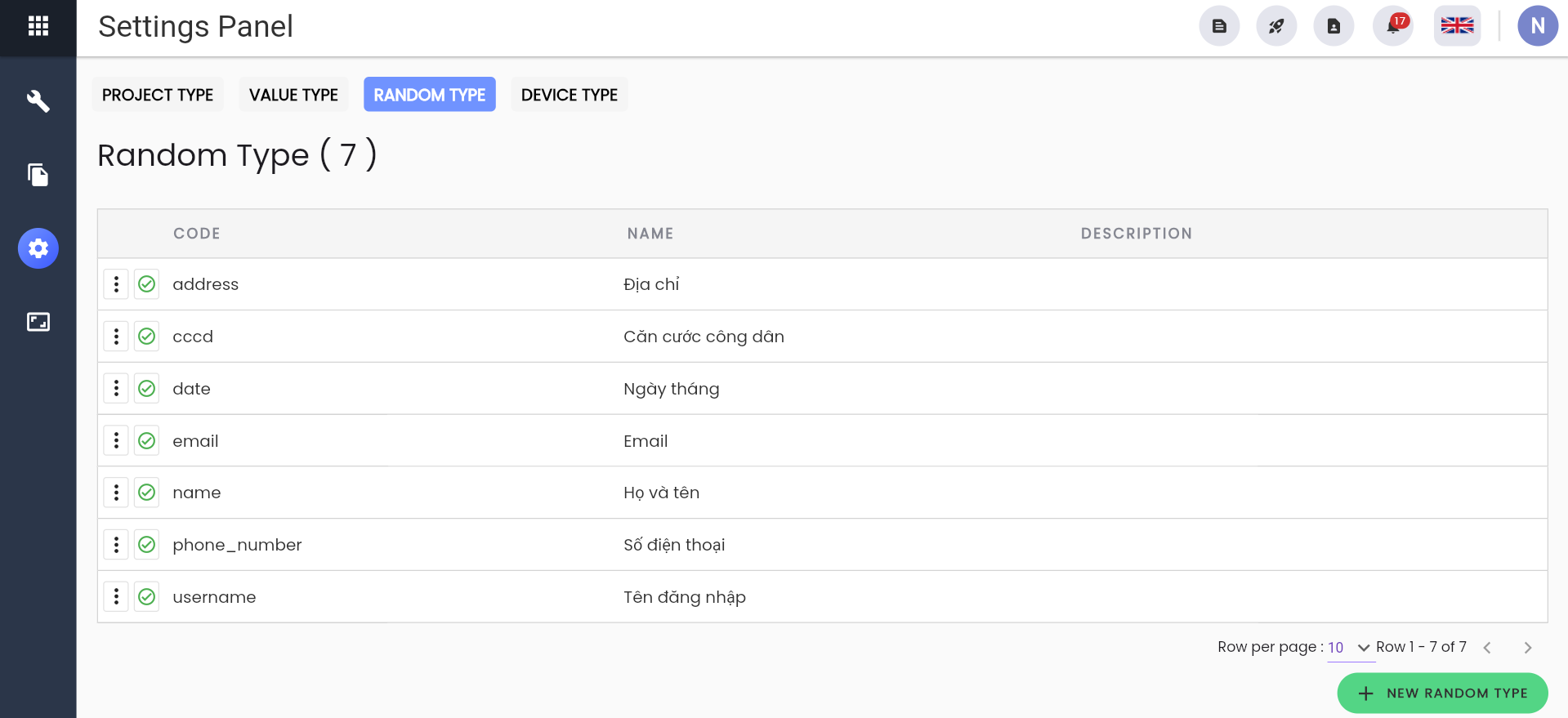
Create New Random Type
Step 1: Click on the Settings application. Go to Automation Test > Random Type
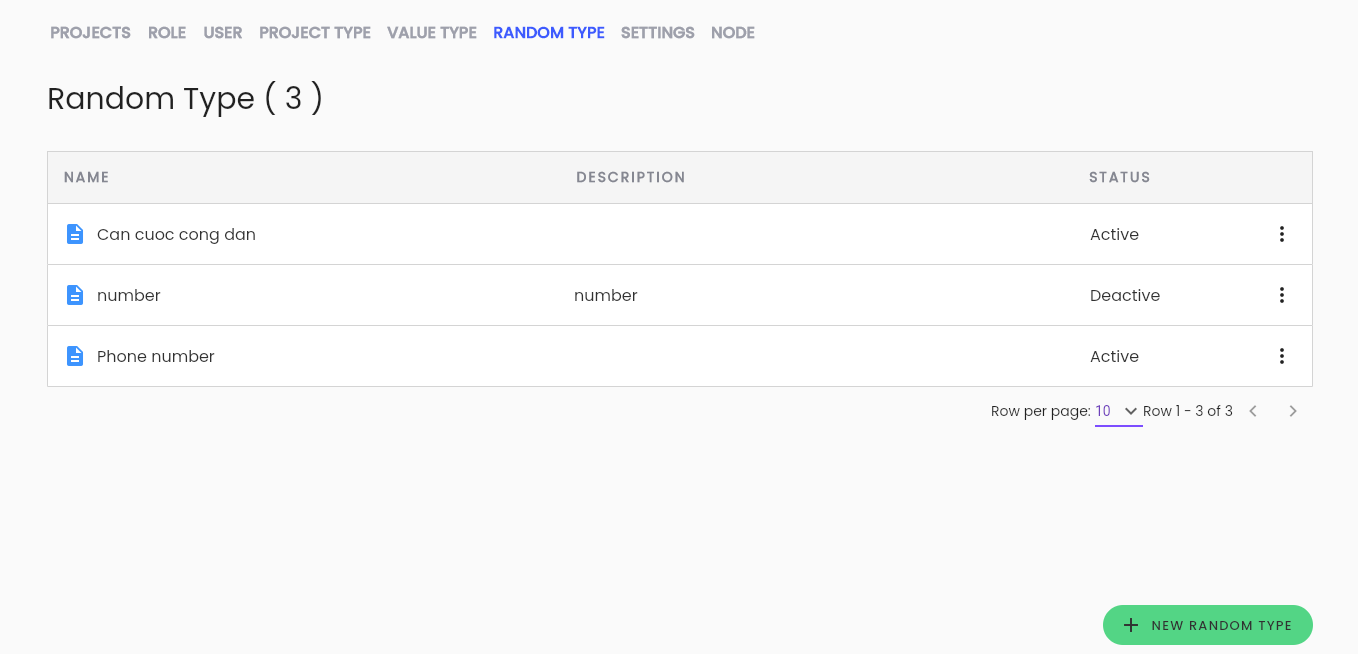
Step 2: On the Random Type screen, click “NEW RANDOM TYPE”, and the system will display the Create Random Type screen.
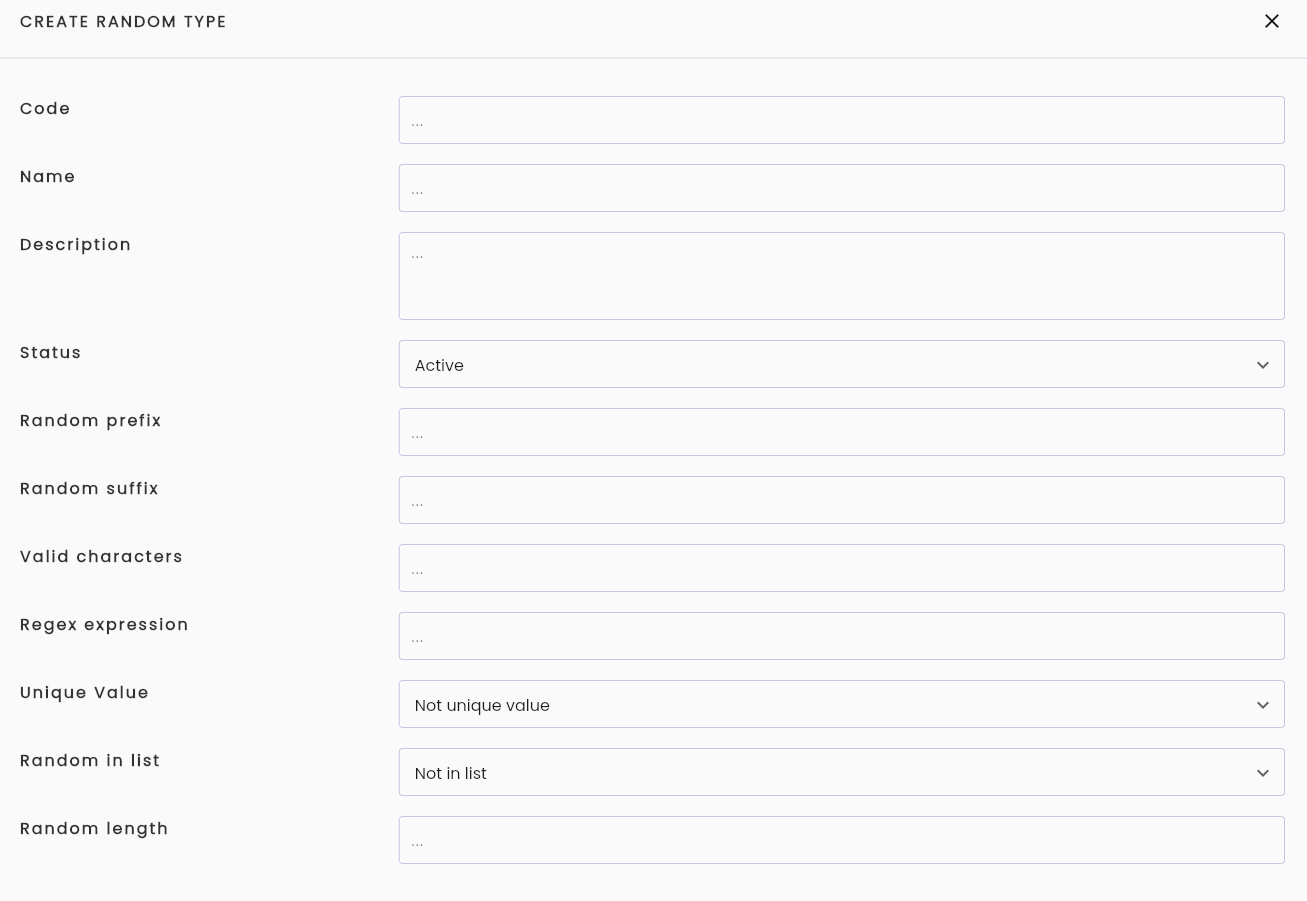
Step 3: Enter the necessary information for the random type, including:
| Field Name | Mandatory | Format | Constraints | Description |
|---|---|---|---|---|
| Code | Yes | Text | Must be unique, cannot be edited, cannot contain special characters except for “_” | Identifier code distinguishing different random types |
| Name | Yes | Text | Name of the random type | |
| Description | - | Textarea | Enter a description for the Random Type | |
| Status | Yes | Combobox | Choose the status of the random type: - Active: Active - Inactive: Inactive. To use the Random type, the status must be active | |
| Random prefix | - | Text | Random prefix | |
| Random subfix | - | Text | Random suffix | |
| Valid characters | - | Text | Valid characters | |
| Regex characters | - | Text | Character pattern | |
| Unique Value | Yes | Combobox | The system displays values for whether to take unique values or not: - Not unique value: Not a unique value - Unique value: Unique value | Users can select one value |
| Random in list | Yes | Combobox | Hệ thống hiển thị giá trị Có lấy ngẫu nhiên giá trị trong danh sách: - Not in list: Not in the list - In list: In the list | Users can select one value |
| Random length | Yes | Text | Must be a natural number | Enter random length |
| OK | - | Button | Click OK to save the Random Type | |
| CANCEL | - | Button | Click CANCEL to cancel |
Step 4: Click “OK”, and the system confirms the successful creation.
Edit Random Type
Step 1:
On the Random Type screen, click the button  corresponding to the value you want to edit, and select “Edit”. The system displays the Edit Random Type screen.

Step 2: On the Edit Random Type screen, enter the information to be edited. The information fields are similar to those on the new creation screen.
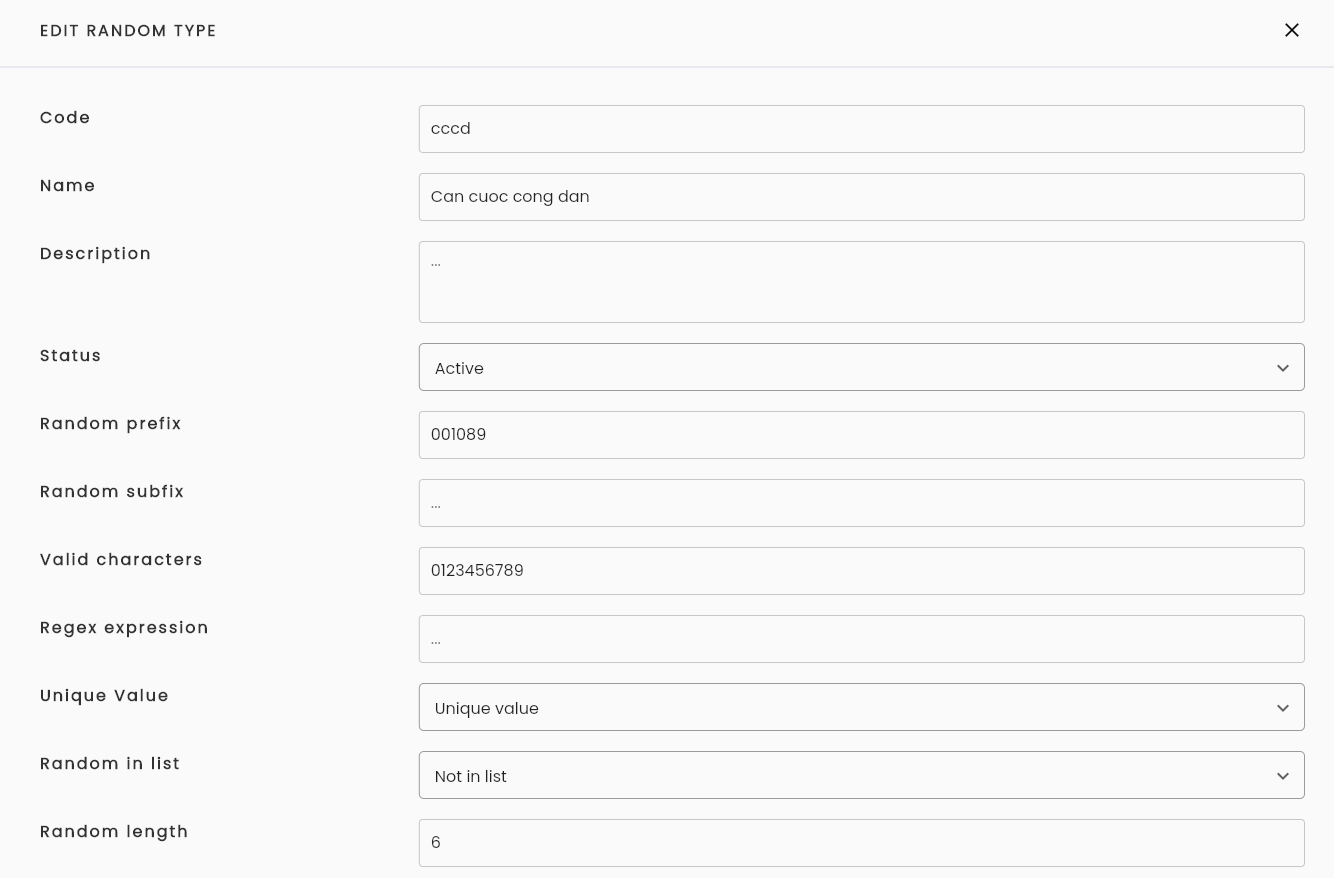
Step 3: Click “OK”, and the system confirms the successful edit.
Delete Random Type
Step 1:
On the Random Type screen, click the button tương ứng với value muốn xoá, chọn “Delete”. Hệ thống hiển thị popup xác nhận xoá.

Step 2: Click “Delete” to confirm deletion. The system notifies “Delete successful.”
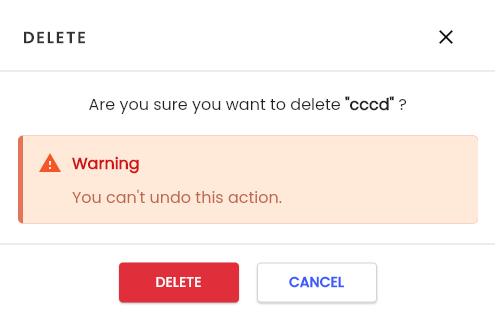
Note: You cannot delete a Random type that has been used. The system will display an error message.

Delete all value
Step 1:
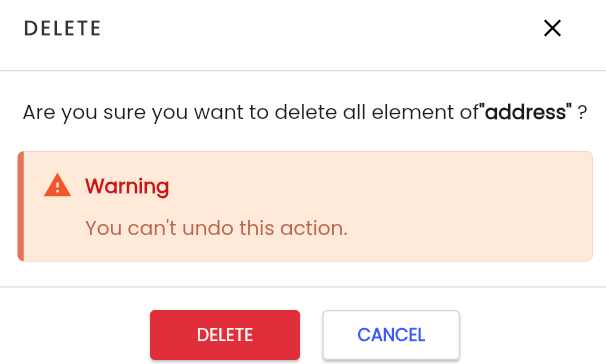
On the Random Type screen, click button corresponding to the random value set you want to delete, and select “Delete all value”. The system displays a confirmation popup for deletion.

Step 2: Click “Delete” to confirm deletion. The system notifies “Delete successful.”
Random Value
Random Values are the random data generated when executing test scenarios based on the configuration information of the random type.
On the Random Type screen, click the icon corresponding to the value you want to create a Random value for, then click “Random value”.
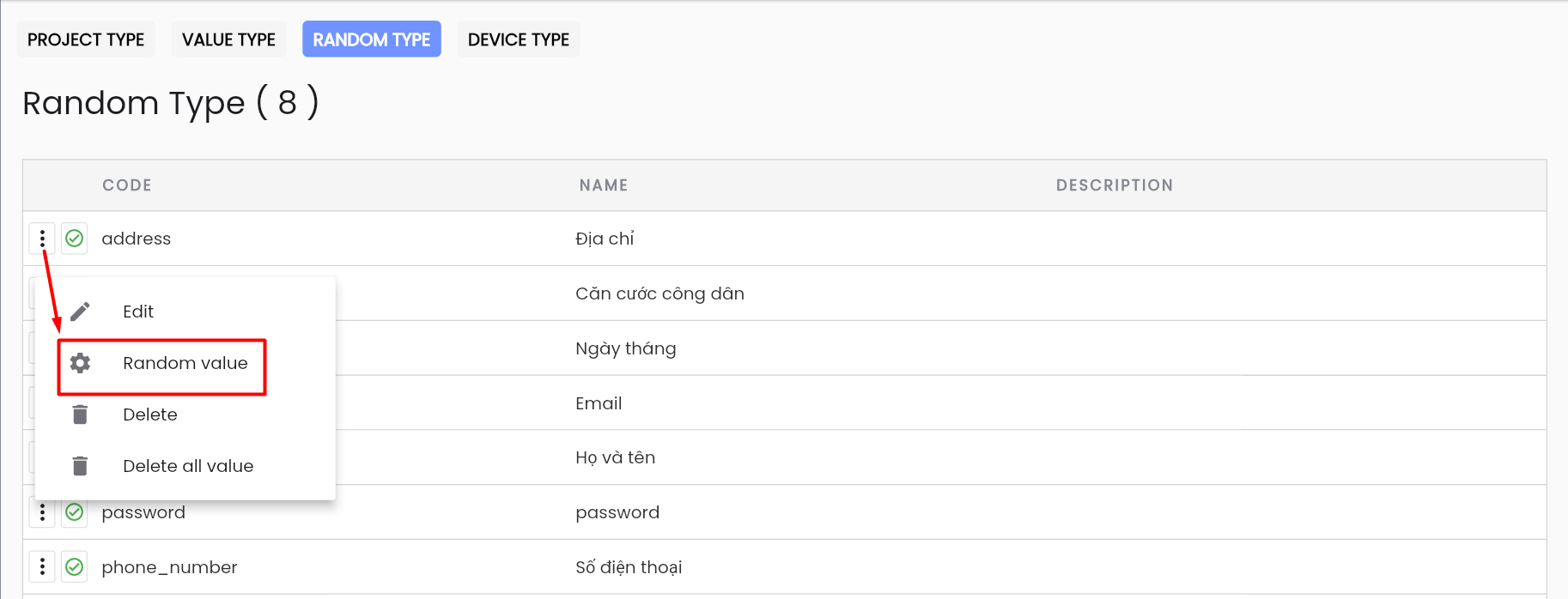
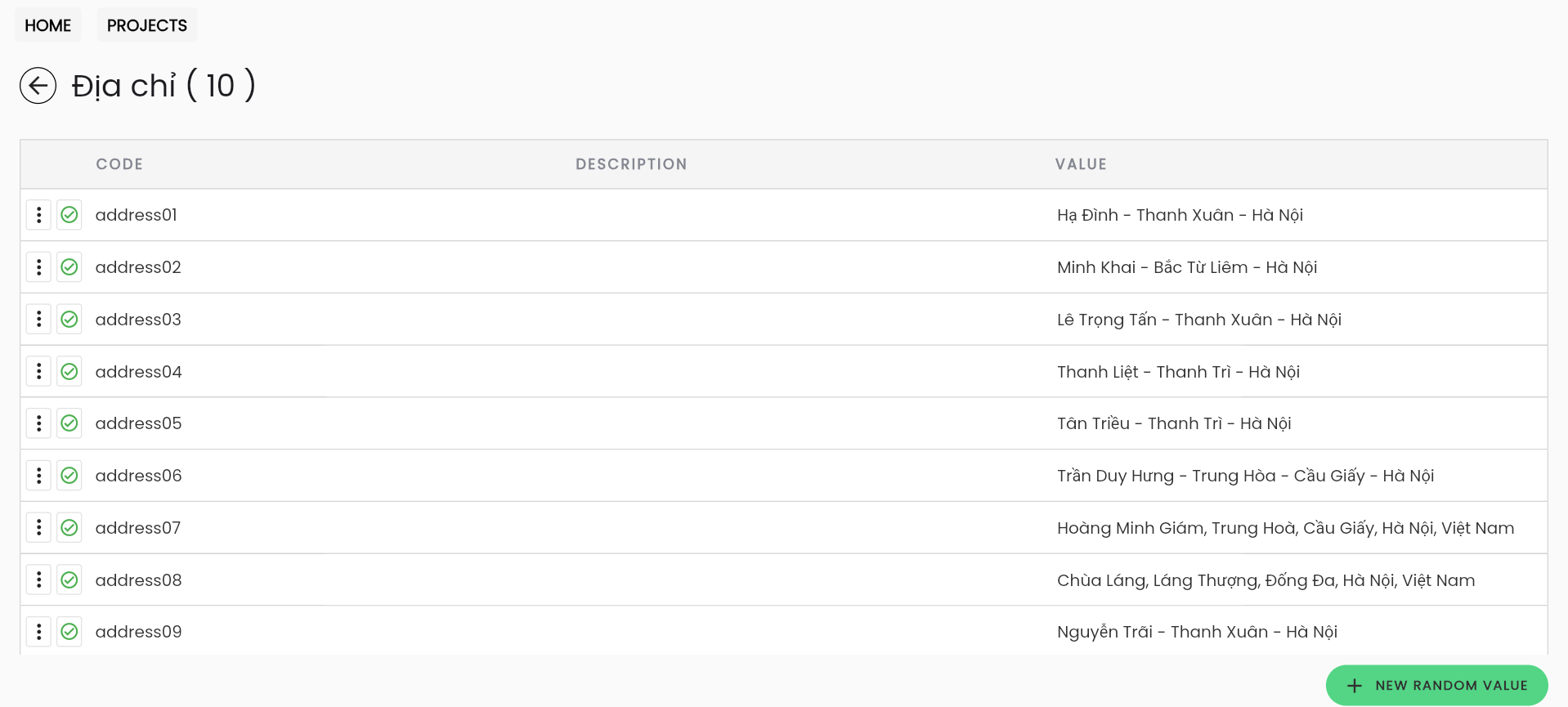
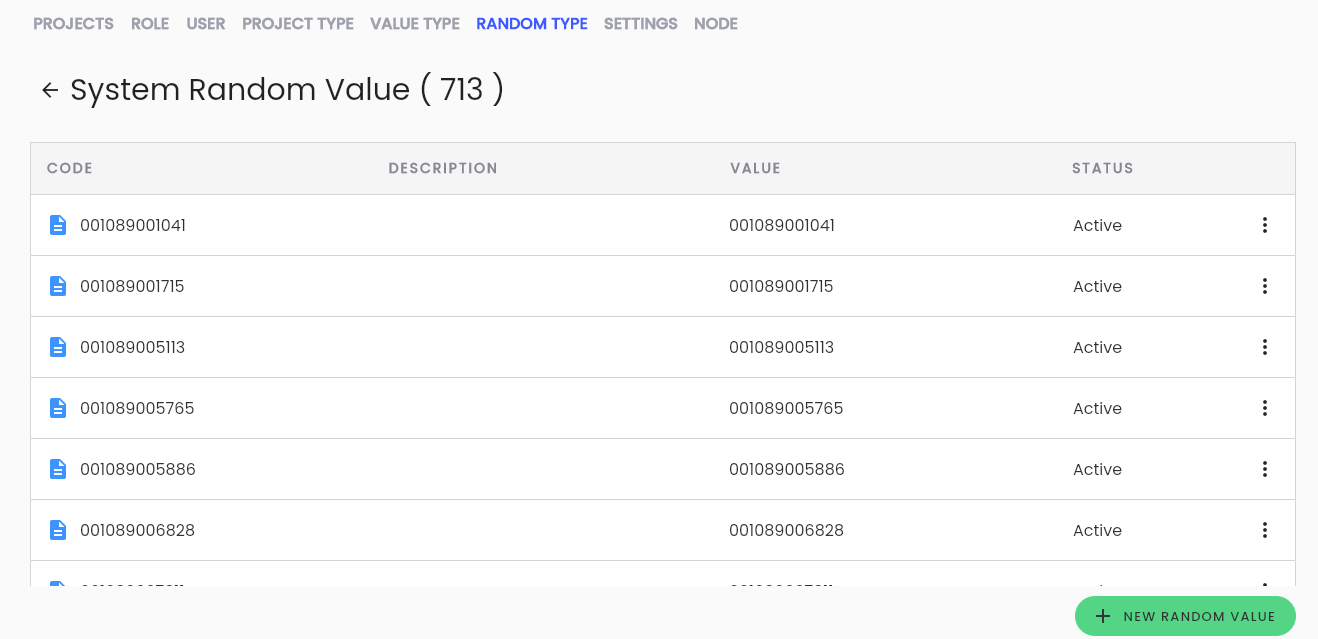
The system displays the System Random Value screen.
Create New Random Value
Step 1: On the System Random Value screen, click “NEW RANDOM VALUE”. The system displays the Create Random Value screen.
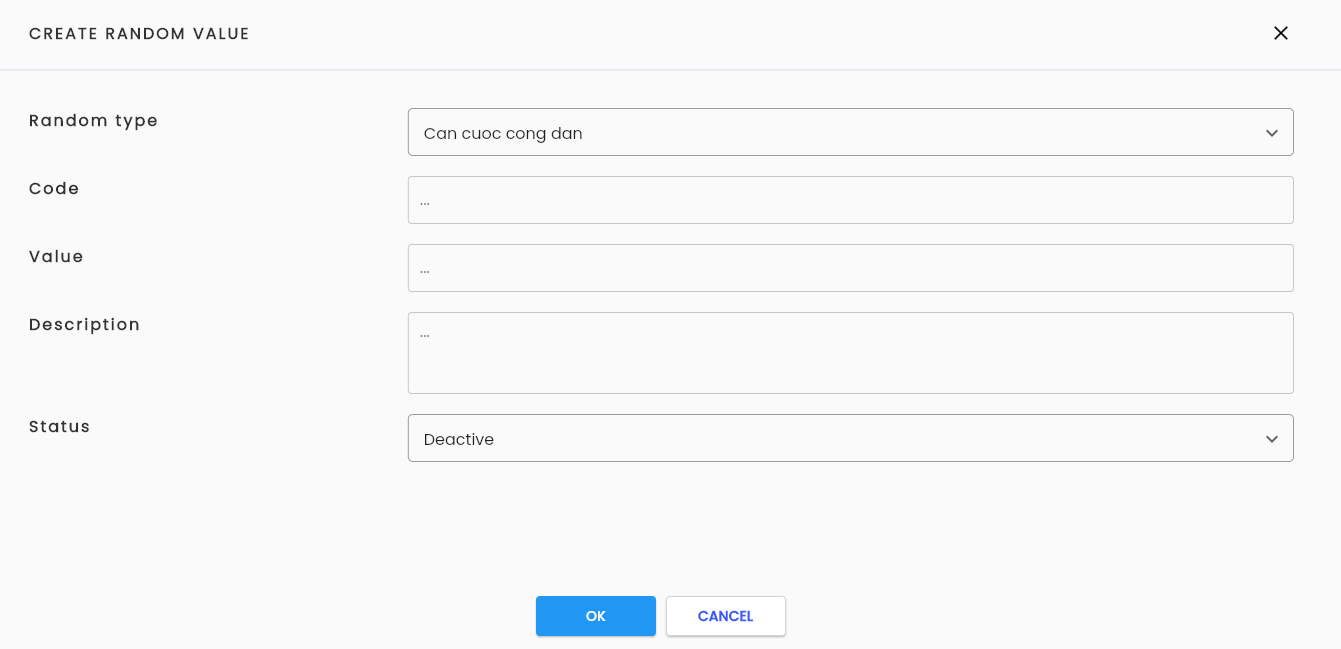
Step 2: Enter the information for the random value, including:
| Field Name | Mandatory | Format | Constraints | Description |
|---|---|---|---|---|
| Random type | Yes | Combobox | Displays a list of active random types in the system. The system defaults to the random type that the user selected for the Random value. | - |
| Code | Yes | Text | Must be unique, cannot be edited, cannot contain special characters except for “_”. | Identifier code distinguishing different random values. |
| Value | Yes | Text | - | Value of the random value. |
| Description | - | Textarea | - | Enter a description for the Random value. |
| Status | Yes | Combobox | Choose the status of the Random value: - Active: Active - Inactive: Inactive. To use the random value, the status must be active. | - |
| OK | - | Button | - | Click OK to save the random value |
| CANCEL | - | Button | - | Click CANCEL to cancel |
Step 3: Click “OK”, The system notifies that the new creation was successful.
Edit Random Value
Step 1: On the System Random Value screen, click the button corresponding to the value you want to edit, then select “Edit”. The system displays the Edit Random Value screen.
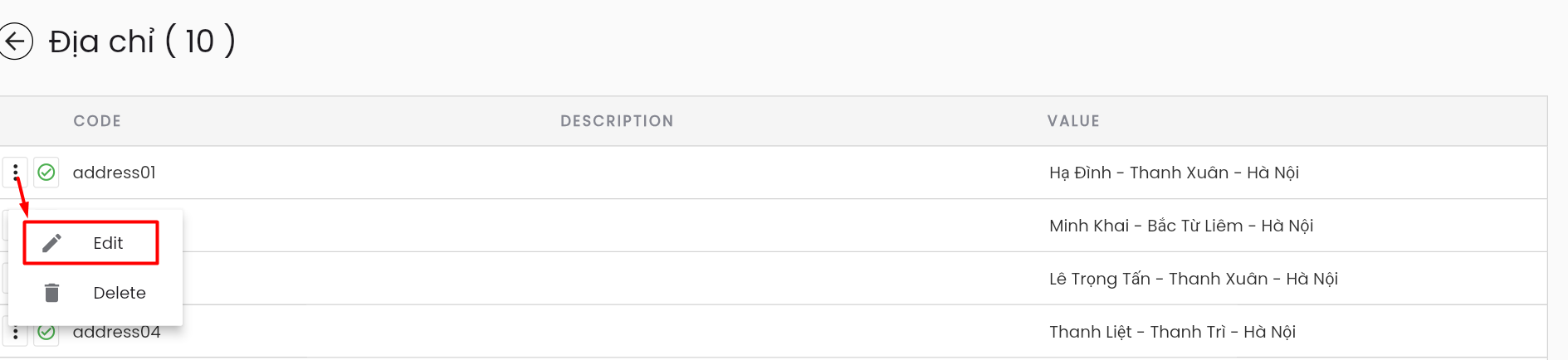
Step 2: On the Edit Random Value screen, the information is similar to that on the Create Random Value screen. Additionally, the code field cannot be edited.
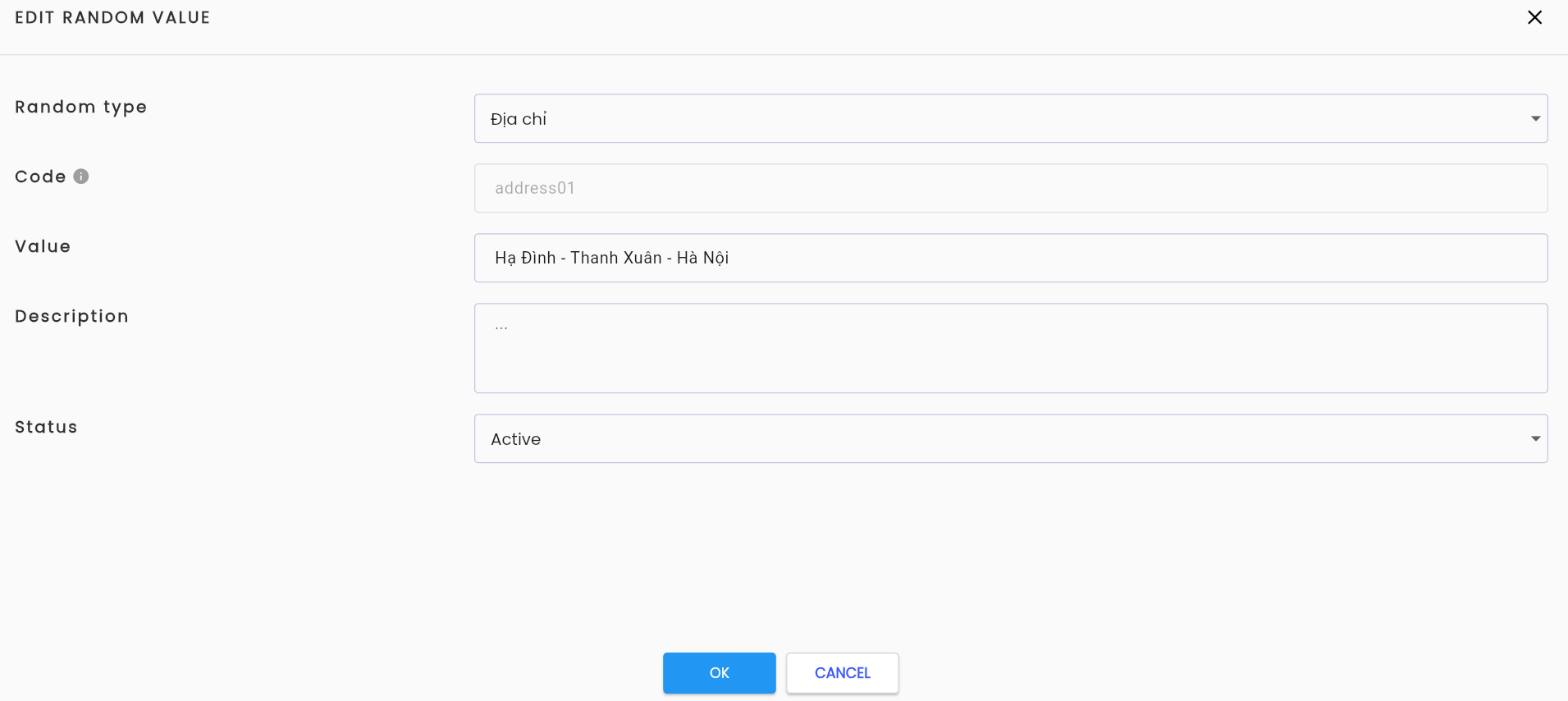
Step 3: Click “OK”, and the system confirms the successful edit.
Delete Random Value
Step 1: On the System Random Value screen, click the icon corresponding to the value you want to delete, then select “Delete”.
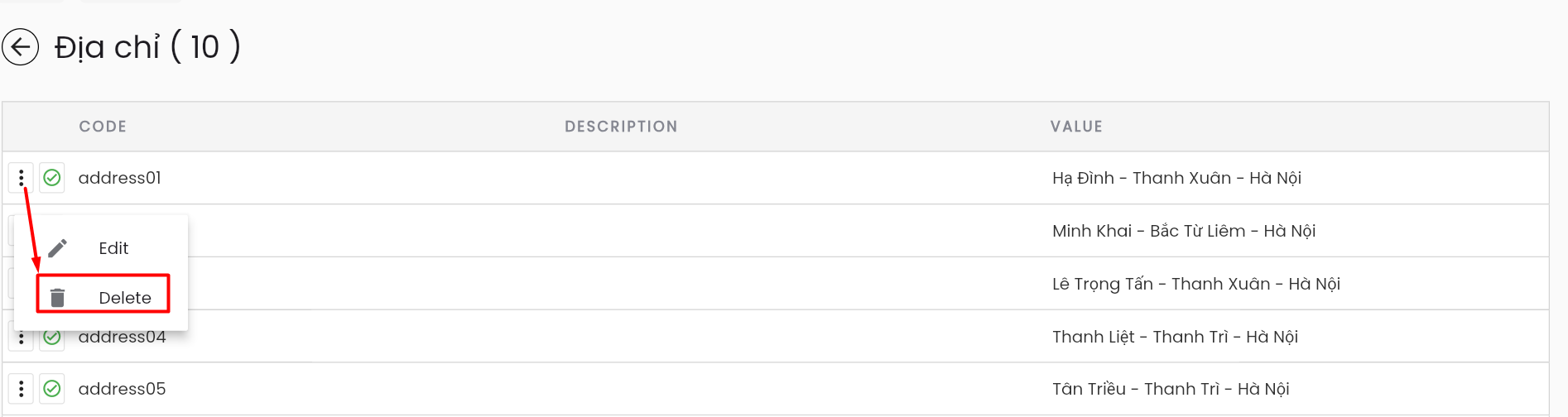
The system displays a confirmation popup for deletion.
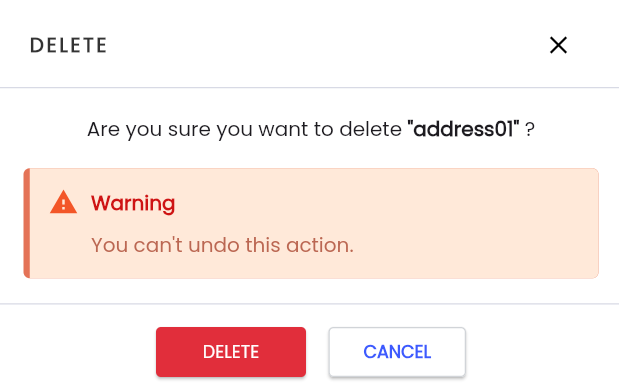
Step 2: Click “Delete”, and the system notifies “Delete successful”.