Setup Requirements for Mobile Testing
Overview
Unlike web application testing, if the user is testing a mobile application or a Windows application, the computer, device, and agent will have specific requirements:
The testing device has an Android operating system
- Connect to the device via a cable.
- The connected computer can be either Windows or macOS.
- The device must have Developer Mode enabled.
- The Android platform must be selected on the Agent.
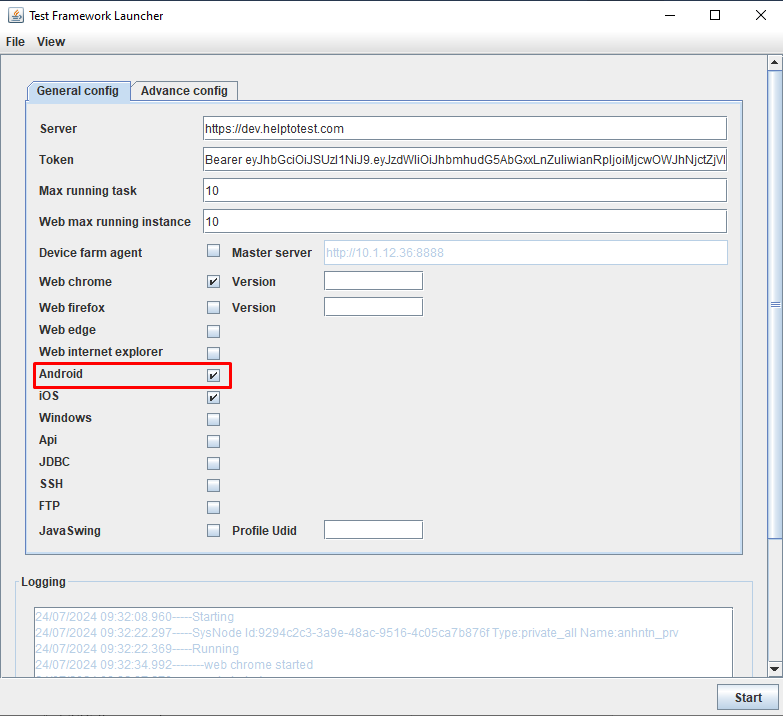
The testing device has an iOS operating system
- Connect to the device via a cable.
- The connected computer must be macOS.
- The device must have Developer Mode enabled.
- The iOS platform must be selected on the Agent.
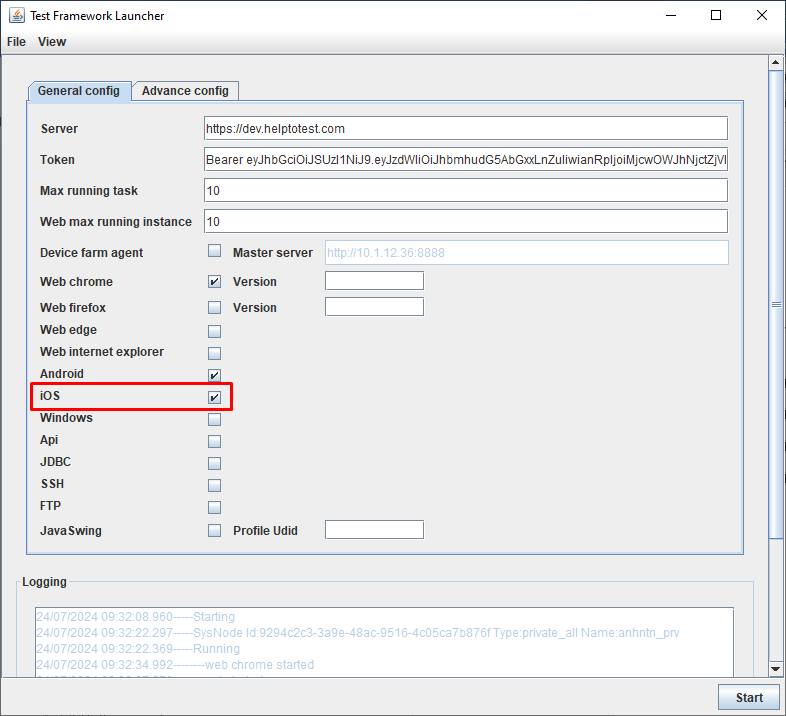
Perform testing with the application running on the Windows operating system
- The device must have Developer Mode enabled.
- You need to select the Windows platform on the Agent.
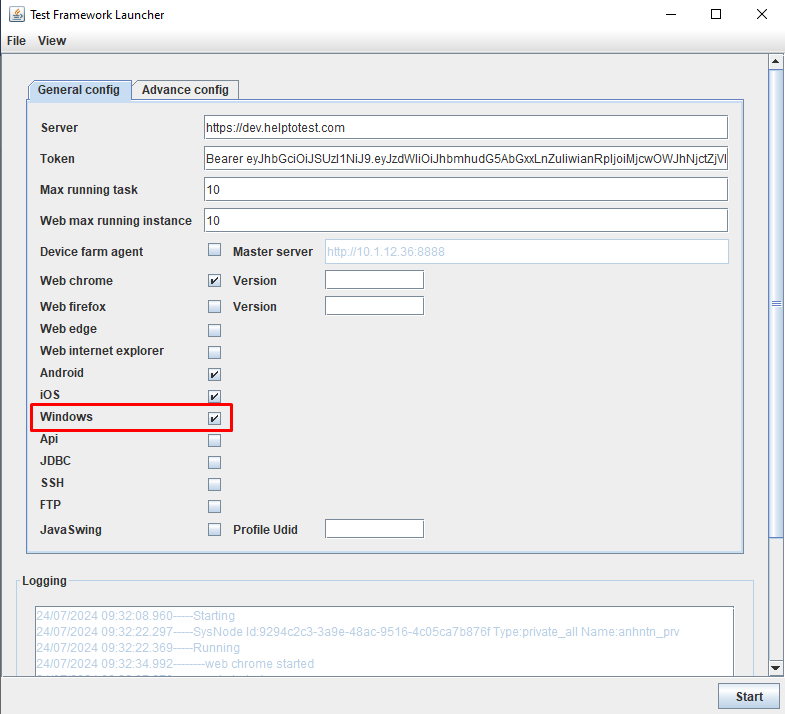
Before testing the mobile or Windows app, make sure that the computer has the following configurations installed:
Testing Android Applications or Applications Running on the Windows Operating System
- Android devices must have USB debugging enabled.
- Windows, Linux, and macOS are the operating systems of the machines connected to the device.
Installation Guide
Step 1: Download và install Android Studio: Android Studio Download
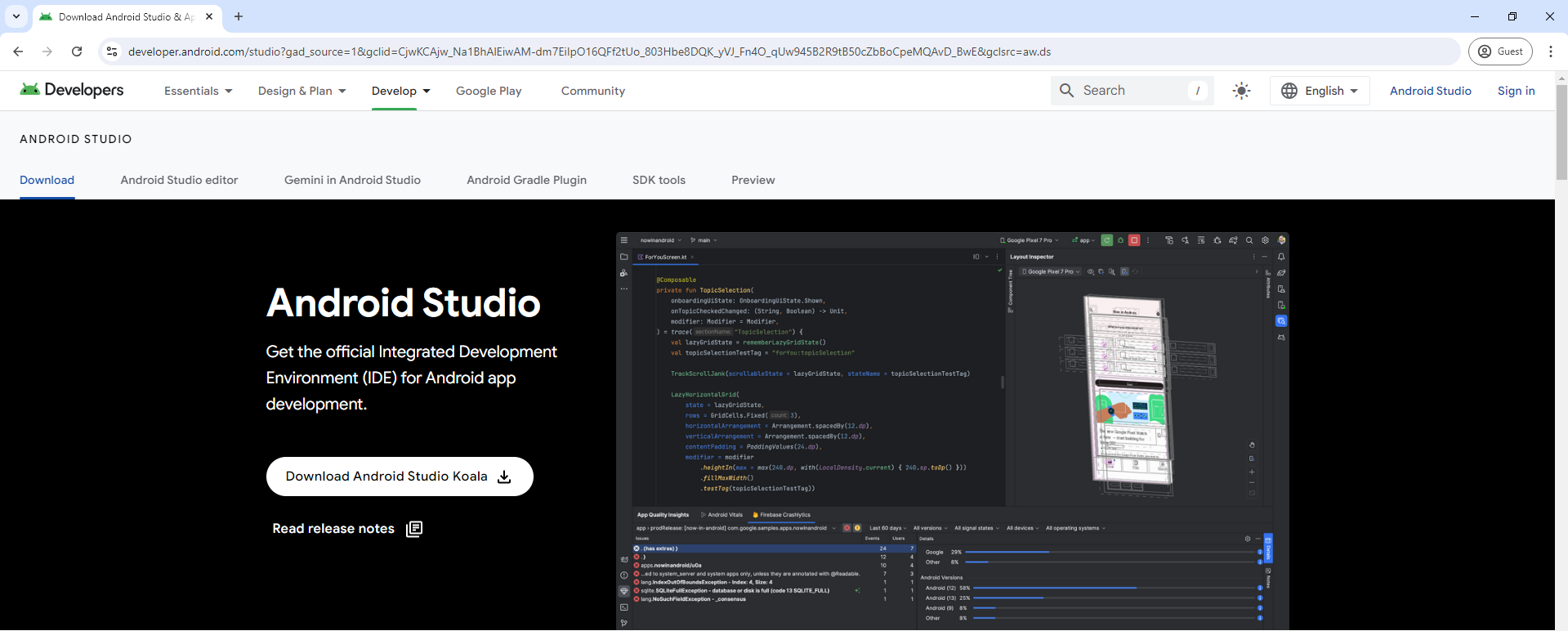
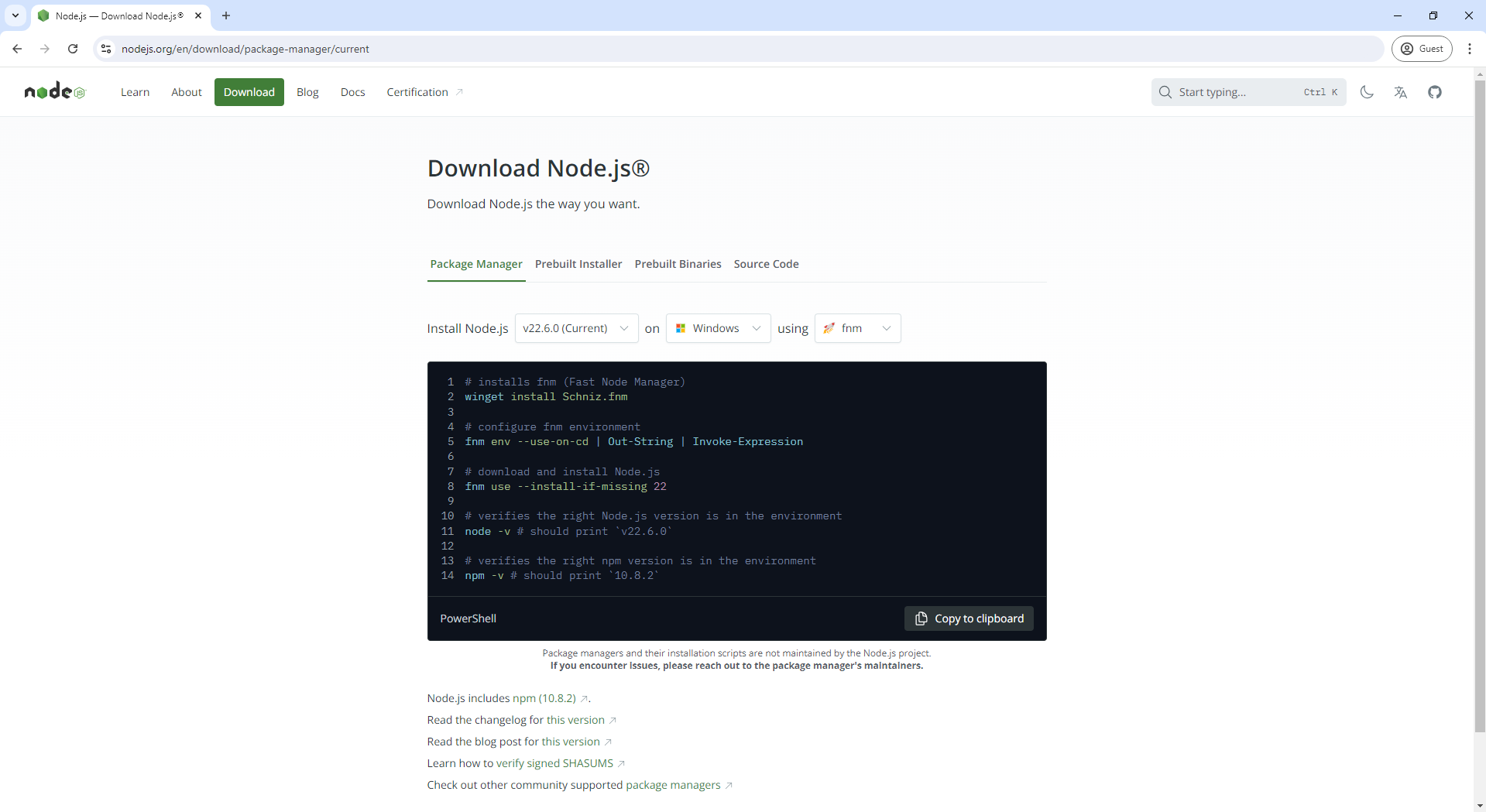
Step 2: Download và install Node.js: Node.js Download
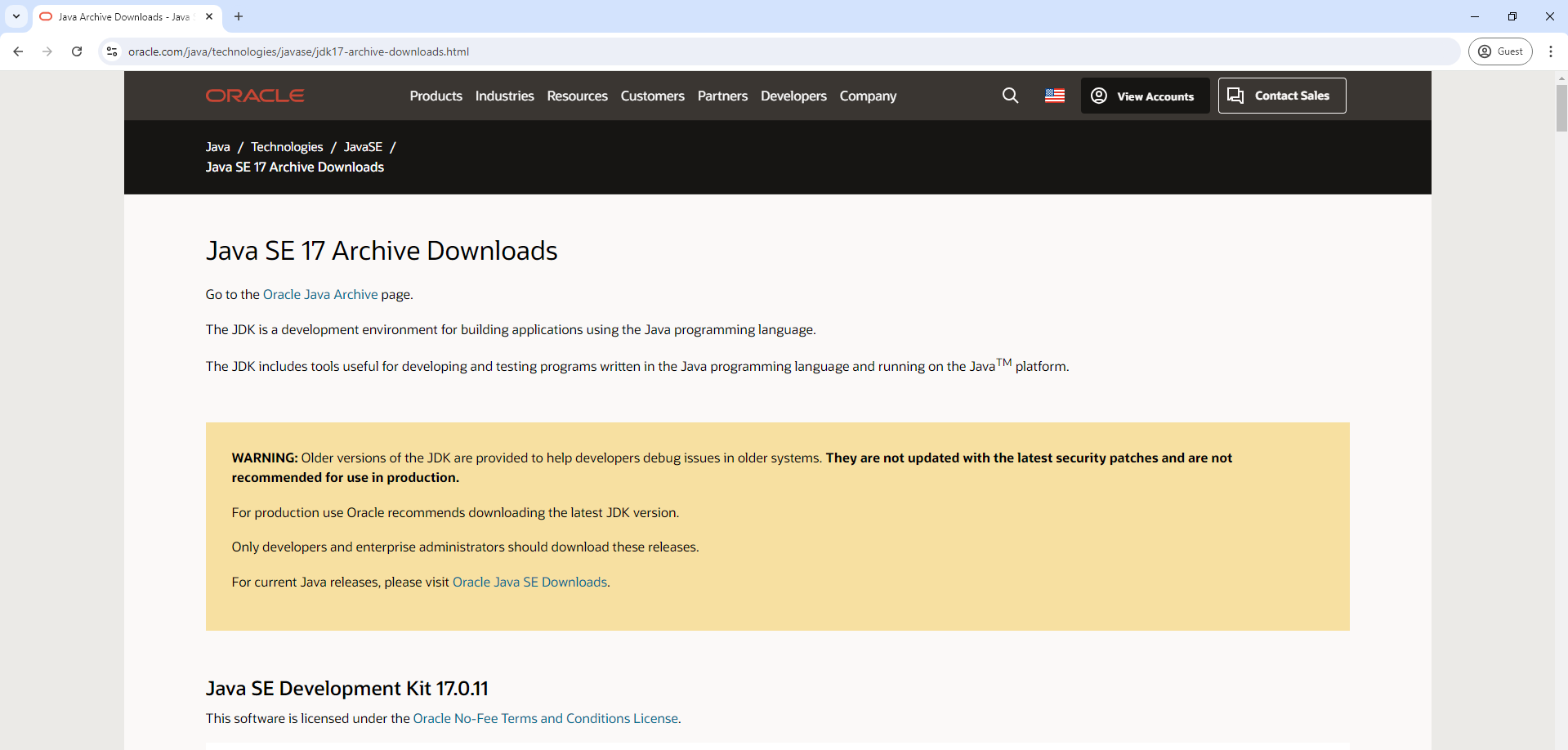
Step 3: Tải và cài đặt JDK: JDK Download
Step 4: Cài đặt môi trường ANDROID_HOME và JAVA_HOME
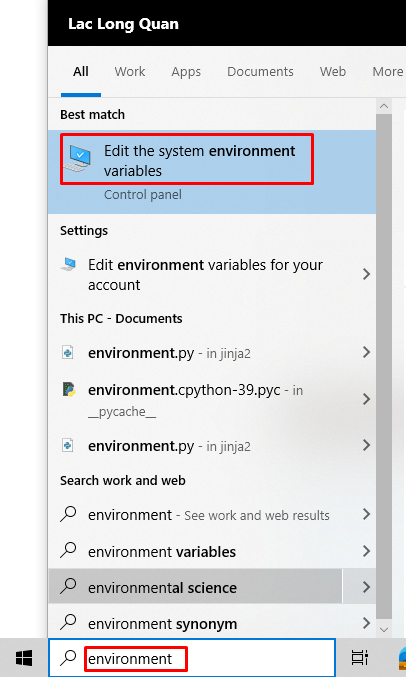
- Enter “Environment” in the search bar of your computer, then click Edit the system environment variables.
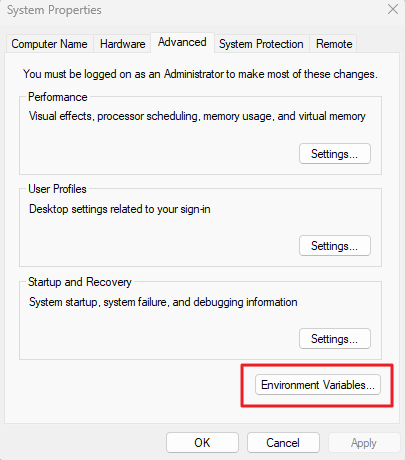
- In the Advanced tab of the System Properties window, click the Environment Variables function.
- In the User variables for admin section, click the New button to create two variables: ANDROID_HOME and JAVA_HOME.
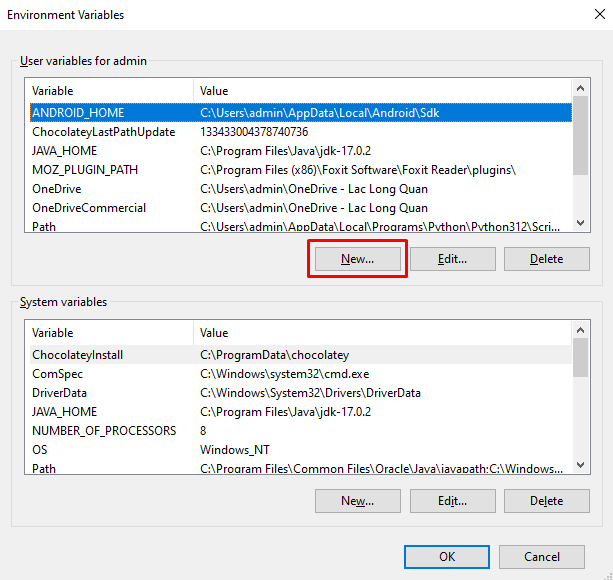
- Set the ANDROID_HOME variable:
The value of ANDROID_HOME will be the path to the\Sdkdirectory after successfully installing Android Studio.
Once set, click OK.

- Set the JAVA_HOME variable:
The value of JAVA_HOME will be the path to thejdkdirectory after successfully installing the JDK.
Once set, click OK.

Bước 5: After successfully installing Node.js, run the following cmd commands to install Appium:
-
Open cmd by pressing the Windows + R key combination or by searching for cmd in the search bar on your computer.
-
Run the following commands one by one in cmd:
npm i --location=global appiumappium driver install uiautomator2appium driver install xcuitestappium driver list
After running the last command, if you see that uiautomator2 and xcuitest have been installed, the installation is successful.

Testing iOS applications
- iOS/iPadOS devices need to have developer mode enabled.
- The connected devices must be trusted, added to the developer profile, and properly configured in WebDriverAgent (Configuration on the device and Xcode Detailed guide).
- The server must be MacOS.
- Web view mode must be debuggable to inspect them.
Installation instructions
Step 1: Install Brew
Run command on terminal:
/bin/bash -c "$(curl -fsSLhttps://raw.githubusercontent.com/Homebrew/install/HEAD/install.sh- Then, run the following 2 commands one after another:
(echo; echo 'eval "$(/opt/homebrew/bin/brew shellenv)"') >> /Users/[user_computer]/.zprofileeval "$(/opt/homebrew/bin/brew shellenv)"
Step 2: Install JDK
Run command on terminal:
brew install openjdk@17brew install ideviceinstaller
Step 3: Install Node.js
Run command on terminal:
brew install node
Step 4: Install Appium
After installing node.js, open terminal and run the following commands one by one:
npm i --location=global Appiumappium driver install uiautomator2appium driver install xcuitest
Step 5: Enviroment setting JAVA_HOME
After installing JDK, open terminal and run the following commands one by one:
sudo ln -sfn /opt/homebrew/opt/openjdk@17/libexec/openjdk.jdk /Library/Java/JavaVirtualMachines/openjdk-17.jdkecho 'export PATH="/opt/homebrew/opt/openjdk@17/bin:$PATH"' >> ~/.zshrcexport CPPFLAGS="-I/opt/homebrew/opt/openjdk@17/include"
Bước 6: Set up the environment ANDROID_HOME
After successfully installing ANDROID_STUDIO, open the terminal and run the following commands one by one:
nano ~/.zshrcexport ANDROID_HOME=/Users/[username_computer]/Library/Android/sdk
How to log in to a Developer account for Xcode
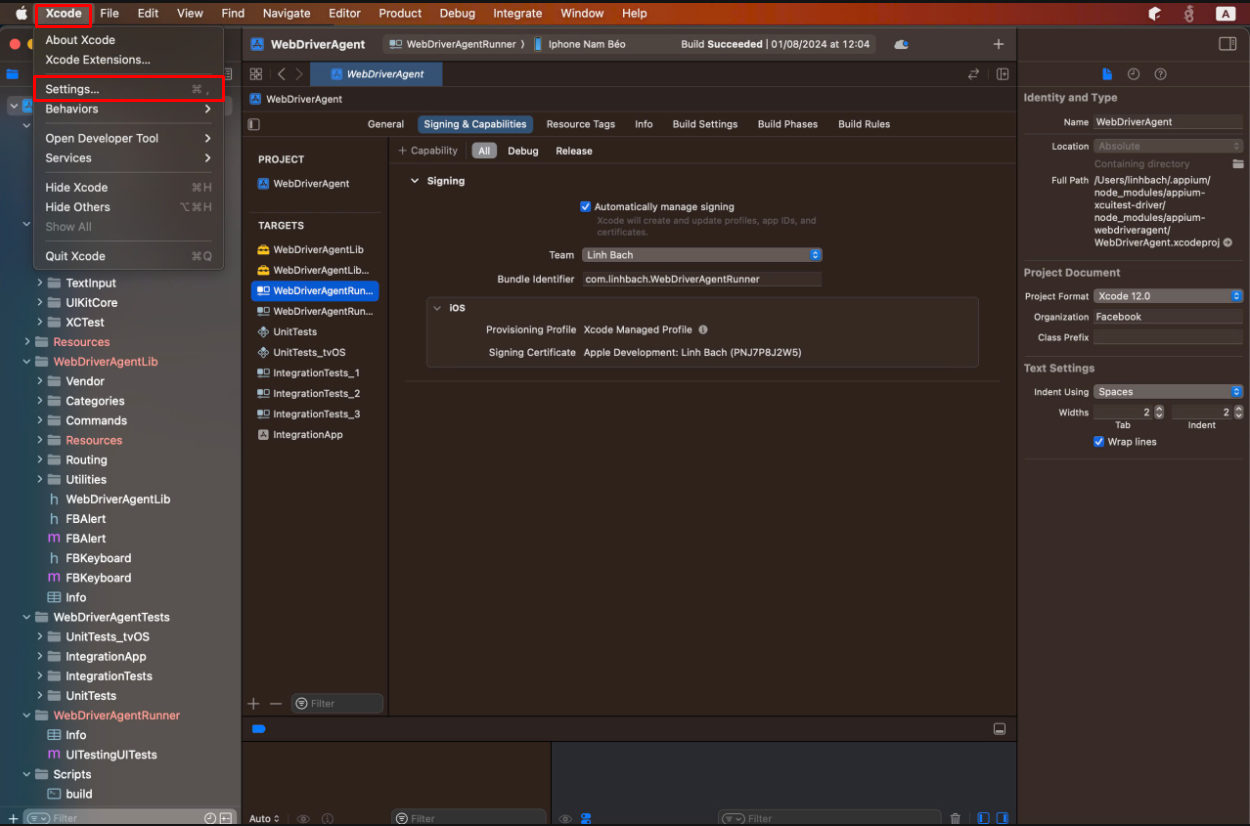
Perform the following actions in Xcode:
Step 1: Click Setting.
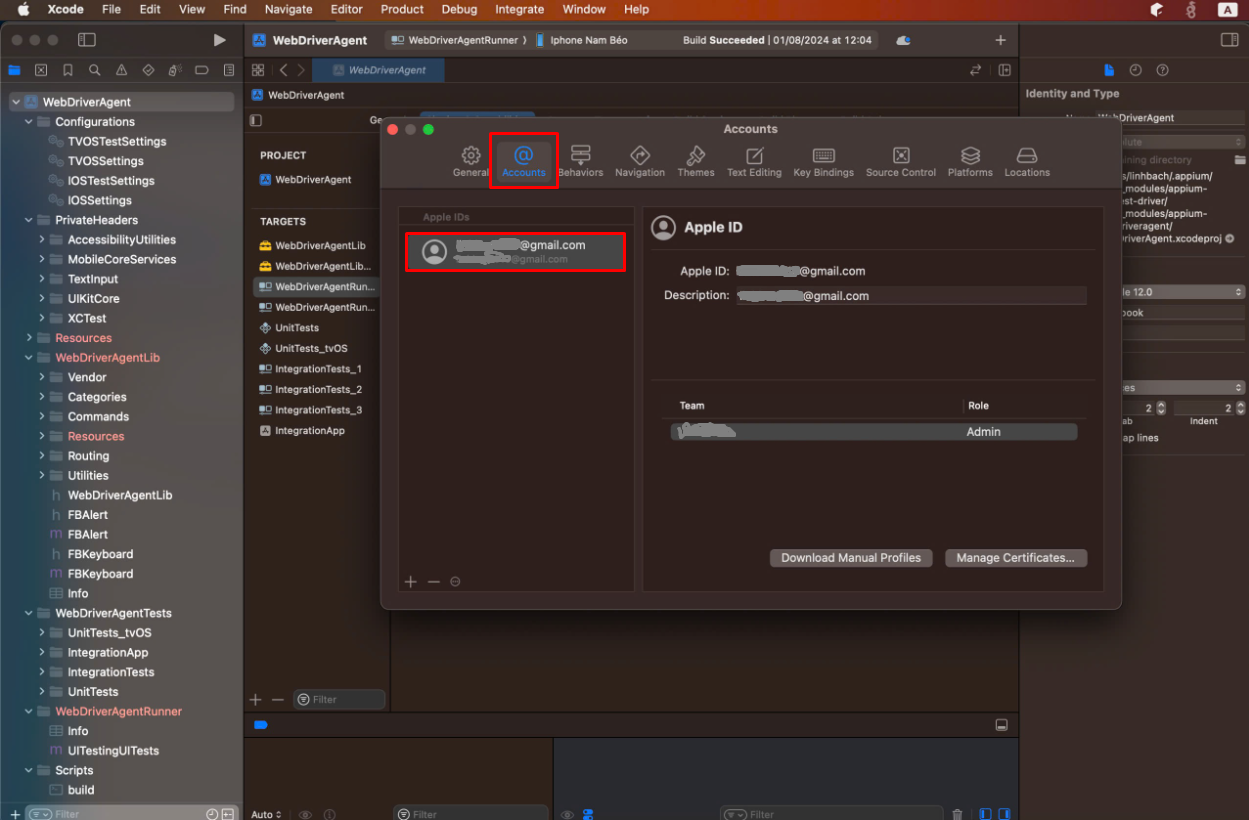
Step 2: Click Account, add an account (the developer account).
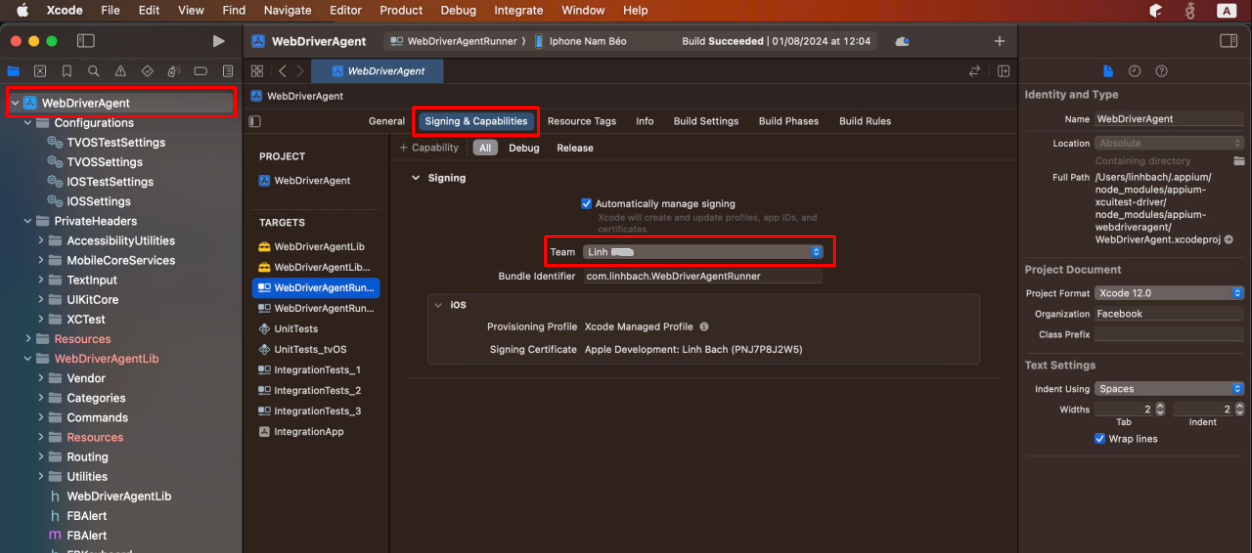
Step 3: Click WebDriverAgent, Then click the Signing tab…> WebDriverAgentRunner, and in the 'Team' field, select the account (developer account).
How to install WebDriver for iOS devices
Open Terminal, and run the following commands one by one:
Step 1: cd /Users/[username_computer]/.appium/node_modules/appium-xcuitest-driver/node_modules/appium-webdriveragent
Step 2: mkdir -p Resources/WebDriverAgent.bundle
Step 3: xcodebuild clean build-for-testing -project WebDriverAgent.xcodeproj -scheme WebDriverAgentRunner -destination generic/platform=iOS CODE_SIGNING_ALLOWED=YES
When plugging in a new iOS device, users must install WebDriver for the device, but for the next time, just go to Xcode and run steps 1 and 3.